Это старая версия документа!
Провода и псевдонимы
Схемы SigmaStudio создаются из блоков, которые соединяются между собой «проводами». Провода определяют поток сигналов системы.
Чтобы создать провод на схеме:
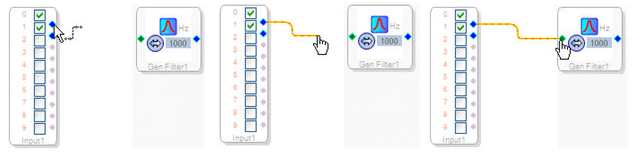
Наведите курсор мыши на вывод блока, чтобы появился значок провода, . Затем щелкните левой кнопкой мыши по выводу блока и, удерживая кнопку мыши, перетащите курсор к соответствующему выводу другого блока. Входные выводы могут соединяться только с выходными выводами, а выходные выводы — только с входными.
Выделение:
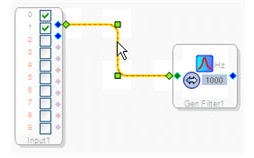
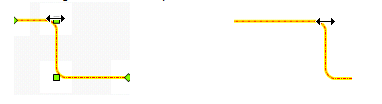
Чтобы выделить провод, щелкните по нему левой кнопкой мыши. Выделенные провода обозначаются зелеными квадратами (точками), как показано ниже.
Позиция:
Чтобы изменить положение провода, наведите курсор мыши на точку. Затем щелкните левой кнопкой мыши по точке провода и, удерживая кнопку мыши, перетащите курсор, чтобы изменить положение провода.
Меню:
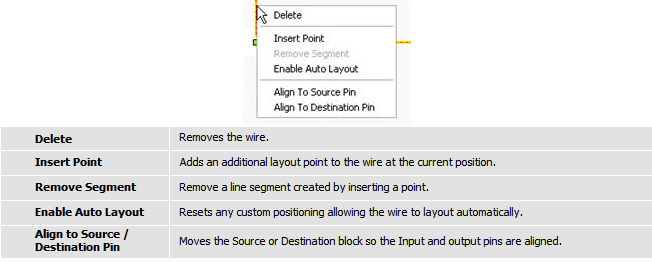
Щелкните правой кнопкой мыши по проводу, чтобы открыть меню провода. Это меню включает следующие команды:
Цвета проводов:
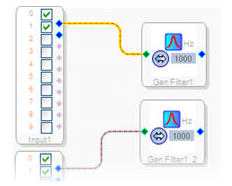
Провода окрашены в соответствии со связанным с ними процессором DSP. Входные и выходные выводы провода должны быть связаны с одним и тем же DSP, иначе вы не сможете создать провод между выводами. В проектах с более чем одной ИС процессора каждый ИС будет иметь свой отличительный цвет.
Псевдоним:
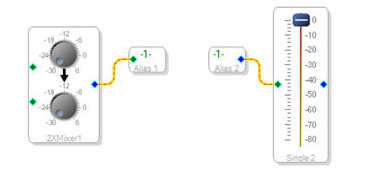
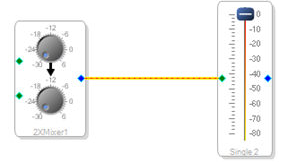
Для визуальной организации проекта часто полезно создать псевдоним, чтобы обеспечить четкую связующую ссылку («переход») в потоке сигналов на схеме. Псевдоним состоит из пары блоков: входа псевдонима и выхода псевдонима. Использование блоков псевдонимов может уменьшить визуальный беспорядок в окне схемы, создаваемый длинными проводными соединениями.
Чтобы создать псевдоним, щелкните правой кнопкой мыши по выходному выводу блока (синий вывод) и выберите Псевдоним в меню.
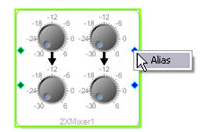
Когда вы нажимаете Псевдоним, появляются два блока: вход и выход. Вход псевдонима автоматически подключается к выходному выводу исходного блока. Затем создайте провод от выходного блока псевдонима (Псевдоним 2 в примере ниже) к месту назначения сигнала.