Using SigmaStudio as a LabVIEW .NET Server
To use SigmaStudio as a LabVIEW automation client, both applications must be installed and
running on the same machine. In this configuration, LabVIEW is a .NET automation client and
SigmaStudio (via SigmaStudioServer) becomes a .NET automation server.
To create a virtual instrument to control SigmaStudio, follow the steps given below:
1. Launch LabVIEW and SigmaStudio on the same machine, and then open a new VI file in LabVIEW
2. Open the .NET palette to access the .NET objects.
3. Insert a Constructor Node which will open the Select .NET Constructor dialog box.
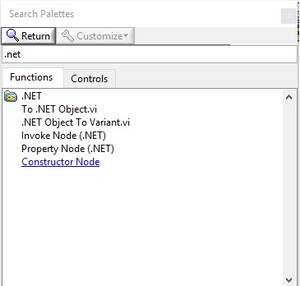
4. Click the Browse… button.
5. Navigate to the SigmaStudio installation directory, select Analog.SigmaStudioServer.dll and press OK.
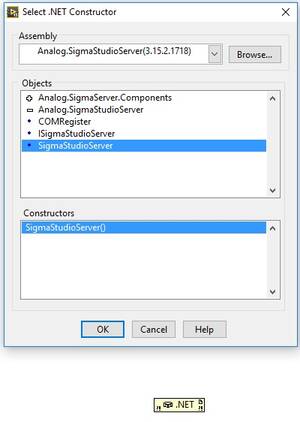
6. Next choose SigmaStudioServer from the object list, SigmaStudioServer() should be displayed in the constructors list.
7. Click OK to select the SigmaStudioServer constructor.
8. Insert an Invoke Node and connect the constructor Node to it.
9. Click on Method to display and select the accessible SigmaStudioServer commands.
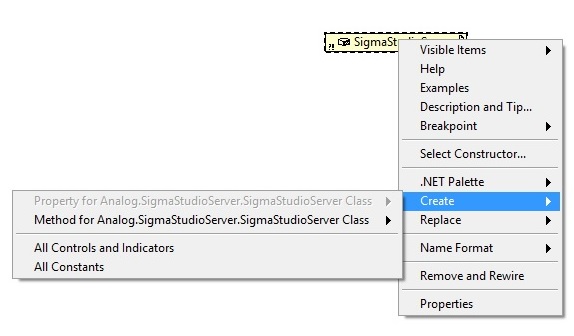
10. Example for a single method “Open Project”
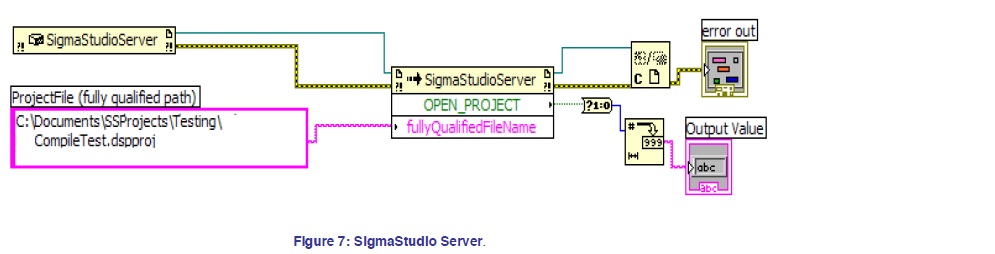
11. Example VI for sequence of operations “open project” → “Compile →“Download”
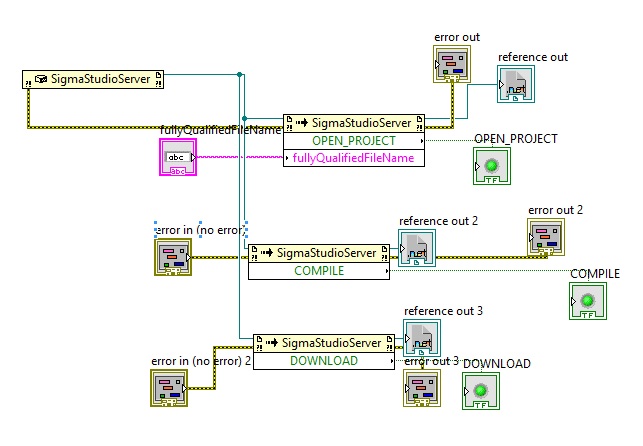
Please download the following example LabView 2015 and edit paths as necessary
labvieweaxample.rar
Refer to the LabVIEW online help and tutorials for more information; the “Using .NET with
LabVIEW” online help topic is a good place to start.