N-Channel
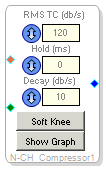 This block, for multichannel use, uses an rms dynamics processor that lets you control the rms TC (time constant), Hold, Decay, and Soft Knee behavior, and displays the compression curve graph for your curve drawing. An rms compressor works on a longer average than a peak compressor, allowing some fast loud transients to pass while longer loud moments are prevented from doing so.
The block compares among the n channels and selects the one with the highest energy. In a 5-channel situation, the sound will be controlled and processed based on the loudest channel.
Push Show Graph to open the Compression Curve window.
For this block to be active, there must be signal at the red pin. That input acts as a detect signal, and the block compresses based upon it.
For multichannel use you will need to grow your algorithm, of course. Right-click the block's border or title and select Grow Algorithm > 1. N-Channel > 1. The signal applied to the red pin will scale the signals applied to the green pins accordingly.
| RMS TC (db/s) |  | Controls the time constant (TC) in dB/second that is used for calculating the RMS input value. The time constant determines how rapidly the compressor will respond to input signal level changes, e.g. the “Attack” time. |
| Hold (ms) |  | Controls the time (in ms) the compressor maintains its current output gain setting before it starts decreasing as the input level decrease. |
| Decay (db/s) |  | Controls the rate at which the compressor gain decreases in response to decrease in the input signal level, e.g. the “Release” time. |
| Soft Knee |  | Soft-knee lets the compressor ease into action, making a less-abrupt change from unprocessed signal to compressed signal. Typically it sounds better. If it is not activated, the default is hard-knee behavior, meaning compression reduces signal level immediately when the threshold is passed. |
| Show Graph |  | Opens the Compression Curve editor window. |