Adaptive Loudness
Hi @ All
I found following Adaptive Loudness DSP configuration..
Im ondering if there is a more simple way to create something with the same effect?
I also use a rotary encoder vor volume control - could I also use this one for setting the loudness-effect?
Thanks in advance,
Lu
Edit Notes
added a question
[edited by: TheLGMaster at 5:57 PM (GMT 0) on 4 Feb 2020]

Hello Lu,
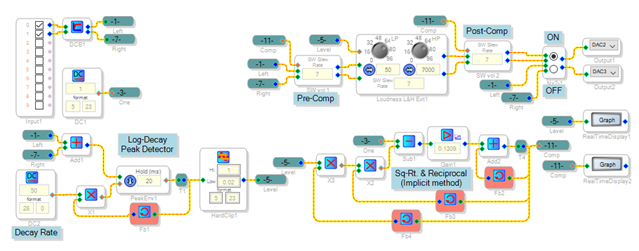
By "simpler," do you mean, "fewer instructions?" And is your DSP the ADAU1701? If the answers are "Yes," the circuit below, while appearing more complex than the one you found, saves many instructions. Here the necessary square-root and reciprocal calculations are preformed implicitly -- a technique taught in high school but soon forgotten since no creative use for it is ever presented. I could go off on how math is taught generally (maybe write a blog post?), but for now -- to see how it works, see page 8 of the AD636 True RMS -- DC converter data sheet from which this idea came from. Anyhow, this dynamic loudness thing operates very similarly to the one you have found. It uses the ADI Loudness block to perform the actual loudness comp filtering. Because this block also adjusts gain on its own, we must apply an inverse gain to keep the overall gain constant. This fighting the gain changes ultimately limits the loudness comp's dynamic range to about 35 dB -- don't lower the Hard Clip's lower limit since it won't help. BTW, the implicit circuit needs all three Feedback blocks as shown -- trying to save with a T junction won't work due to a glitch in the ADAU1701's compiler which hasn't been fixed as of SigmaStudio v. 4.5.
Another way to provide dynamic loudness compensation is to have the audio level control two General Second-Order Index Selectable Filters. It's more trouble to implement because you need to input a host of filter curves, but much less work for the DSP. For an example, please see this post.
Using the ADI Loudness block with a rotary encoder is actually quite straightforward -- just substitute it for your usual Slew External Volume Control block. If you wish to make it switchable, place both blocks in your project and select the output of one or the other with a MUX.
Best regards,
Bob
dynamic-1701Loudness-comp-implicit.zip
hey bob, thanks for your fast reply!
im using a ADAU1451 exactly this: https://www.hifiberry.com/shop/beocreate/beocreate-4-channel-amplifier/
will this also work? i will check your DSP file and try to understand ;) and later just try to get it work on my test-DSP-board.
just attached my dsp file for you
greetings from germany,
Lu
DesktopSpeaker.rar
Hi Lu,
The short answer is yes- Bob's algorithm will work on the ADAU1451.
Please note that the ADAU1451 is based on a different architecture than the ADAU1701. So some of the blocks in SigmaStudio are slightly different between the two DSPs.
Because of this, I recommend that you re-draw Bob's schematic in your project from scratch.
Josh
Hi Lu & JoshuaB,
My version of the adaptive algorithm should work fine with the ADAU1451; however you could substitute that chip's divide and square root blocks for the implicit calculation shown. The ADAU1451 is much more capable, thus its divide block doesn't share the limitations of the ADAU1701 divide block. Also it offers several times more MIPS to handle the calculations. For the ADAU1451, your final project will appear much like the adaptive loudness schematic you have shown in your original post.
Best regards.
Bob
hey josh, hey bob,
short answer: it works!
thank you guys so much!
btw: i also tryed to increase the bass-output by adding a second rotary volume to the bass-stream (reversed table) and this also works. but anyhow, im using your system.
i have an other question:
my board dousnt start with a audio stream straigt after powering up/switch on.. means, i always need to click one time on "link compile download" then it starts.
my second smaller dsp board does this without problems.
do u guys have any idea why this happens?
greetings,
Luca
Hi,
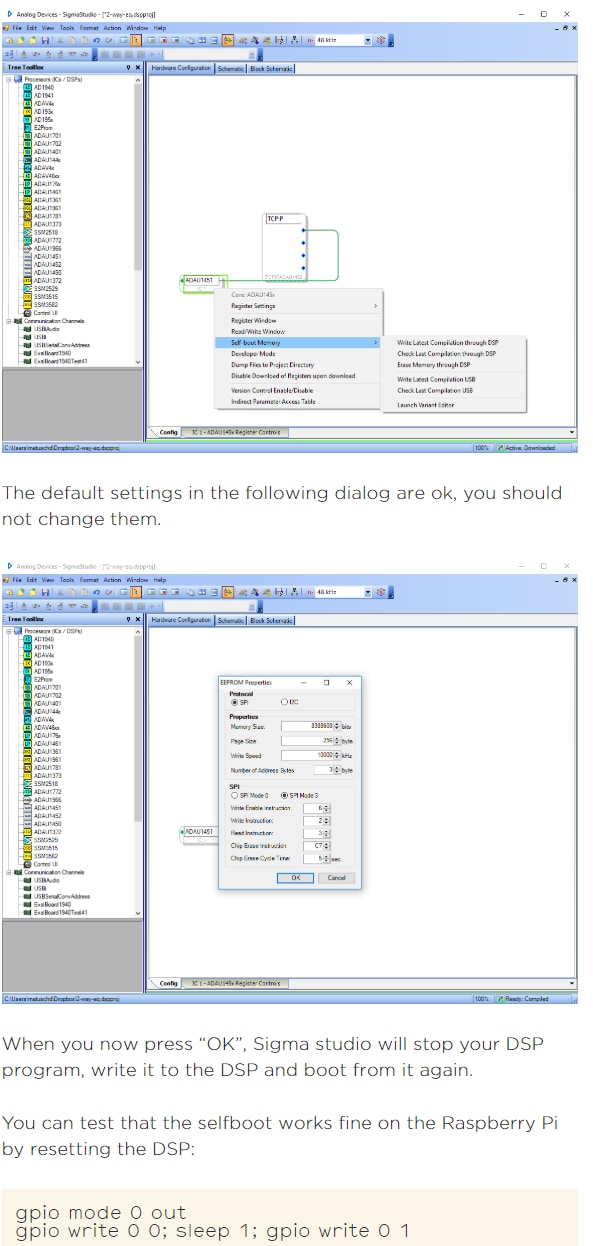
In order for the ADAU1451 to start up by itself, it needs to have a program stored in the external EEPROM and the selfboot pin must be tied high.
You can do the first part in SigmaStudio by downloading the program; right-clicking the ADAU1451 in the hardware controls page; selecting "Self-boot Memory -> Write Latest Compilation through DSP"; and entering the parameters for your board's memory.
The following capture is from Beocreate's documentation. You should probably use their parameters.
Is there a jumper or switch on the board to tie the selfboot pin high?
Josh
hi josh,
thanks for your reply!
i do this way since i have my two dsp boards. one works "on the fly" (means loaded from eeprom) but not the second dsp-board.
thats the reason its very strange and im asking here ;)
maybe the audio source from the raspi (spotify or via bluetooth) is getting in something like a sleep mode??
thanks in advance
Hello TheLGMaster,
I would like to answer the question: "Is the DSP booting up from its EEPROM?"
Are you using our eval boards? If you are then tell me the model numbers.
Most of our eval boards will have a GPIO connected to LEDs. What you should do is place an oscillator in your project to turn a GPIO pin on and off. Then you can "see" if the program is loaded and running when you power up the board. If the program is running then we need to look more closely at other things. If it is not loading up then we need to look closer on how the EEPROM is being written or other hardware questions.
There are too many variables right now, lets, narrow this down some.
Thanks,
Dave T
hello Bob, very nice block -- I have implemented this in my project. In listening tests, the effect is perhaps too pronounced in my setup, particularly in the bass response. Is there a parameter I can change to back off the effect somewhat? I thought the two "dials" in the Loudness L&H module itself would achieve this but I couldn't discern much of a change by live-auditioning different positions on the dial.
thanks, -Mike
Hello Mike,
According to the Sigmastudio Toolbox Wiki, the Loudness block's knobs are supposed to control the amount of boost -- if this doesn't work, we'll instead need to "fudge" the level-sensing part of this setup to make the measured level less sensitive to the actual input level. This in turn would reduce the effect, hopefully to human size. I have an idea for this but its implementation depends somewhat upon the function blocks available for the DSP you're using. Thus I'll ask first, which SigmaDSP are you designing with?
Best regards,
Bob
Thanks for giving this a read and some thought. I'm using the 1701.
-Mike
Hello Mike,
As it turns out, my fancy idea didn't work any better than the ones shown below, which can run on a -1701 or any DSP. The difficulty with any loudness comp is establishing the high level where no compensation is needed. It's a calibration issue. We know that in the DSP, the ADCs and DACs clip at +/- 1.0, even though inside levels can go higher. Thus, 1.0 is considered full level, or the zero dB reference. By design we often make our power amp's clipping level about the same, so everything clips together. This level is generally much louder than that special level below which we want the loudness comp to begin. If we make the loudness comp blind to levels above this point, we can avoid excessive compensation with its thundering bass.
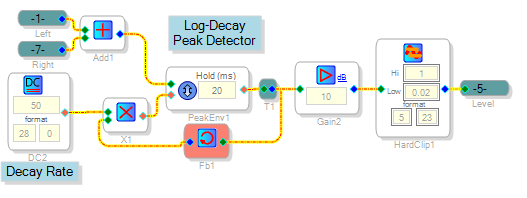
Like nearly anything you can do in SigmaDSP, there's several ways to achieve this. Here's the easiest way: just add some gain between the peak detector and clipper, as shown below.
In my tests with headphones, 6-10 dB gave the desired results -- you may need more when working with a powerful speaker system. In my previous post I had mentioned the need to "fudge" the detector to make it less sensitive -- so why are we adding gain? Because it's an inverse relationship. The higher the measured level the loudness block sees, the less compensation it provides. Thus we desire the level detector's output to stay at the 1.0 level set by HardClip1 except for low-level signals where compensation is needed. At satisfyingly loud listening levels, switching the compensation ON and OFF should result in little if any change.
If you would like more control over how the comp works over its operating range, you could experiment with a Linear Interpolator block. This allows you to build a graph which determines how much comp you get vs. input level. Here's the relevant schematic portion. I'll continue this discussion in a new post below because in times past I had found a hard limit of two pictures per post (and I don't know if this has been fixed).
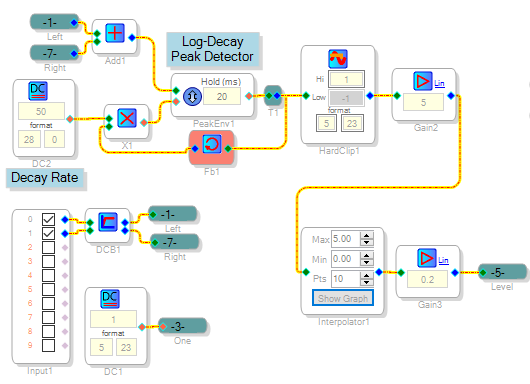
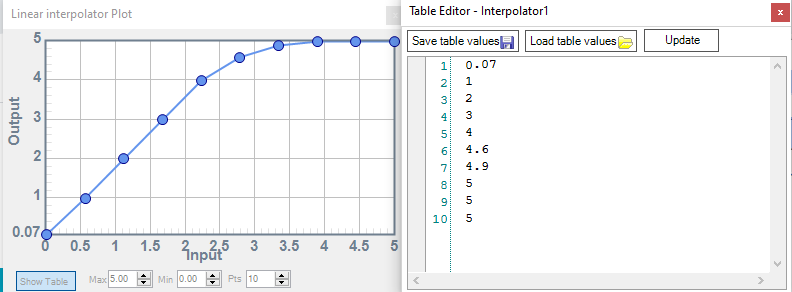
The Linear Interpolator is uniquely useful for making an adjustable result from a known input range. Here the input range is the Level Detector output (usually from 0 to 1.0), which I show multiplied by five, so the Interpolator sees an input from 0 to 5.0. This multiplication, and the canceling multiplication by 1/5 = 0.2 after the interpolator, is to get more resolution.
First, set up its range (0.0 - 5.0) and the number of points in its graph (I chose 10). Then click Show Graph, and in the resulting graph, Show Table. In the Table Editor, type in your desired values which will control your loudness compensation.
I had set the high end of the table to 5's -- this is the region where no comp is to be applied. The low end of the table applies compensation, adjust as determined by your listening tests.
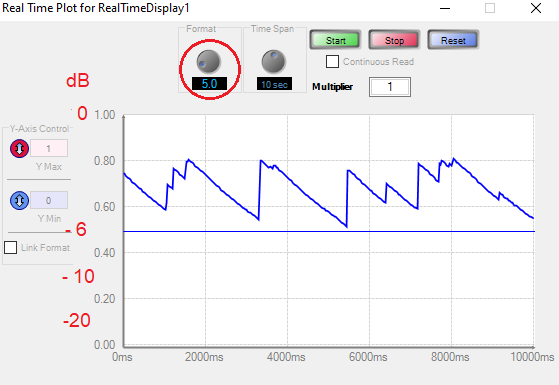
You can visualize the level which the Loudness block sees -- and bases its compensation upon -- using the RealTime Display. You'll need to set its Format knob to "5.0" -- corresponding to the -1701's 5.23 number format -- to make the display work properly. Remember that a 1.0 level here tells the Loudness Block that no compensation is needed. A level of 0.5 or six dB down calls for that corresponding amount of compensation.
There's likely other ways you can experiment with to make the loudness comp work as desired. Perhaps Dave could chime in with some suggestions, as he is way more experienced with audio practice. By contrast, I slid into it rather late in life. Most of my time is spent testing circuit boards and such.
Best regards,
Bob
Lots to dig into! This is educational and is a great start to experimentation. Thanks very much Bob.
Please log in to reply.