ADAU1466 Sigma Studio Serial Port Pin Assignments: Problem with I2S signals
I have two ADAU1466 on a new project. Unit "A" is the master DSP and all serial input and output clocks are set as masters. Unit B is the slave DSP and serial port inputs are set as slaves (clock domain 0) and its serial port outputs as masters. Unit B runs off the clkout from Unit A (24.576mhz). I made up two simple audio schematics in Sigma Studio: one for Unit A and one for Unit B. These are attached.
Problem: In the circuit for Unit A, I have a noise generator going to "Output 0 & 1", which should be serial output port 0, two channel stereo. I have no outputs for any other serial port. I am getting no LRCK or BCLK on serial output port 0, but I am getting data. On serial output port 1, there is LRCLK at 288khz and BLCK at 18.432mhz, but no data. On serial output port 2 there is no LRCK, BCLK or data. On Serial output port 3, I have LRCLK at 288khz and BLCK at 18.432mhz, but no data. How is this possible? What is Sigma Studio doing here?
In the circuit for Unit B, there is "Input 0 & 1", which should be serial input port 0, two channel stereo. This goes to a crossover to divide into a three way output using serial ports 0-2 (Outputs 01, 16-17, and 32-33). I am getting no LRCK or BCLK on serial output port 0, but I am getting data. On serial output port 1, there is LRCLK at 288khz and BLCK at 18.432mhz, but no data. On serial output port 2 there is no LRCK, BCLK or data. On Serial output port 3, I have LRCLK at 288khz and BLCK at 18.432mhz, but no data. Again, what is going on here?
Thank you. Patrick
Audio Signal Processors
SigmaDSP Audio Processors
adau1466
Hello Patrick,
I can ask the same thing,... what is going on here?
The LRCLK frequency is WAY over the max of 192kHz. So I think you do not have some basic clocking setup properly.
The default PLL settings are for a 12.288MHz clock so have you adjusted the PLL dividers for 24.576MHz?
You did not attach your projects. FYI, with the forum software you have to zip the projects and attach the zipped files.
Also, do you have both DSPs on one PCB? Do you have them on different addresses and both connected to the same USBi connector? If this is all true then you can program and control both processors in one SigmaStudio schematic. It would be really handy for you.
I will wait to see your projects.
Dave T
Dave,
I had a very detailed reply written and I was going to hit send, but then I could not find anyway to attach a zip file. While trying to do this, I lost my reply. I will write this out again once you tell me where the hell is the "attach file" button. Lol.
Hello Patrick,
Ugh,... been there done that. It took me a while to learn this new platform we are using for the forum as well.
Look at the bottom of the reply box and you see a pull down box called "Insert".
Select Insert Image/Video/File,
Then in the "From" box pull it down and select File.
Then click on "Browse" and you should have it from this point.
It has to be zipped.
Dave T
I have two ADAU1466s on a single board, called Unit A and unit B. Unit A has a precision 24.576mhz oscillator. In Sigma Studio, I set the Pll Predivider to 8 in the test code for Unit A. I had a clean 24.576mhz signal from the clkout pin which I route over to the xtalin pin on Unit B for its primary clock. In Sigma Studio, I set the Pll Predivider to 8 in the test code for Unit B.
Each DSP has its own eeprom, SPI and I2C interfaces. I have verified that I can download and store separate Sigma Studio projects to both DSPs. I have also verified I2C control after self-boot up from code that I have downloaded into each DSP eeprom. I can set their addresses independently (right now I am using pin headers for this).
I assumed that Sigma Studio would take the 44.1khz sampling frequency setting and generate the other clock signals. This appears to be an incorrect assumption. [ I sent a prior email earlier in the week asking about setting clock domains for the BCLK and LRCLK pins when used in slave mode, but I did not get a reply.]
I did use Sigma Studio to set up the serial port (both input and output) BCLK and LRCLK pins as either masters or slaves, depending upon how I was planning to use them and as needed for the respective Unit A & B test project. I set the clock domain (when slave mode was chosen) to domain 0. These should all be in the test files. This could be the issue, but I need more information than what is laid out at p.64 of the data sheet (this is a bit sparse on explanation/example).
I looked at that menu and said to myself that it must mean inserting a file into the test of the message.Test 1466 041420.zip
Thank you, Patrick
Hello Patrick,
Thanks for inserting the project files. By the way, I ended up the week with all my emails answered and all the Engineerzone posts up to date. I replied to several of your posts. What did I miss?
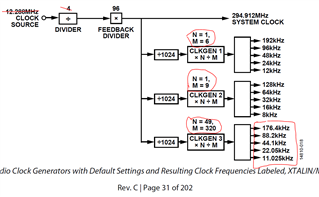
If your product will always operate at 44.1Khz then I would consider changing the master clock to produce a system clock of 270.9504 MHz. This will still give you 6144 instructions per sample period but the clock setup will be easier and better. Figure 19 in the datasheet details this.
With what you are using for a master clock right now then I suggest you setup your clock generators to this"
I crossed out the 12.288MHz and the divider setting of 4 because you are using 24.576MHz and a divider setting of 8. That is the correct setting for the divider.
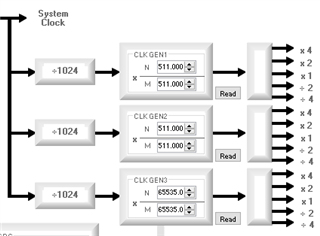
The clock generators in your second DSP project are all wrong.
You have all the N and M settings the same. This will give you a multiplier of 1. So a system clock of 294.912MHz is divided by 1024 then multiplied by 1. This gives you a sampling rate base rate of 288kHz. This is the "x1" setting. So the X2 is double that and the divide by 2 is 144kHz etc. This will certainly cause problems.
I suggest you use the default settings in the datasheet.
Your core start pulse is set to the base_fs of clock generator 1 which will be this 288kHz rate. You cannot set the core start pulse rate to clock generator 3 directly but you can set it to follow the input or output serial ports. Then those ports can be set to the clock gen 3 rates.
It looks like you have the serial input ports all set to slave off of their clock inputs. This is fine. Set the core start pulse to follow one of these serial ports and you should be good.
The serial output ports seem to all be set as masters, which is also fine. Then you need to change the Clock Generator used to be Clock Gen 3. Then if clock gen 3 is setup as shown in the datasheet the base fs will be 44.1kHz. Then since you are using the same master clock you should be fine. Now, I am looking at the second DSP. Now I will open up the first DSP project and have a peek as to what you are doing there.
Again, the three clock generators are all set incorrectly. Set those the same as what I mentioned above.
The serial input and output ports are all set as masters. This is OK but you will need to change the clock generator source for those ports to be the Clock Gen 3 if you want it to run at 44.1kHz.
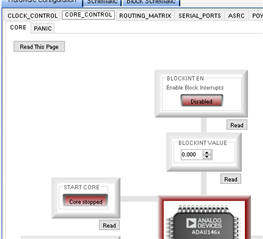
Now another thing I noticed on both DSP programs is that you have the core stopped.
Turn on both of these buttons to have the DSP function.
I should point out something. I am wondering if you had at some point performed a "Read All" registers command? Since you are using SPI and if there is a communications problem with the DSP it will read all zeros or all ones and corrupt all the registers in the part. Do not use those Read All buttons in less you have saved a copy of your program you can go back to. There are a lot of registers in this part so it is quite a mess to recover from this. I suggest you place a DC cell connected to a Readback cell to test communications in a safe way in your projects. they do not use many MIPS.
This should get you further along.
Dave T
Hello Patrick,
As I looked back at your clock generator settings, I think my hypothesis might be correct that you did a read all and changed tons of registers. The easiest way to recover is to do the following:
Place a new ADAU1466 DSP into the config page of your project.
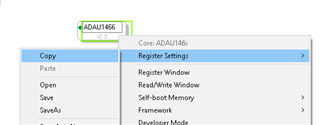
Then copy the settings of the part by right-clicking the GUI icon like such:.
Copy the settings then go over to the processor GUI you are using and right click on it then select "Paste" and you will get all the default values.
Then go back and change the PLL divider and the master/slave settings of the serial ports and you should be good.
Note, that you do not have to enable the Block Processing Interrupts if you are not using the block processing features.
Then delete the DSP GUI object you just inserted and you are back on track.
Dave T
Dave,
Thank you for the extensive answer. I will go through this today.
Yes! I naively did a "Read all", several times. I thought this was benign and a useful test. That button is like a candy bar to a child. Lol. I suggest putting a red, flashing marker next to this button in Sigma Studio with a reference to help section so that others avoid this pitfall.
Thank you! Patrick
Dave,
Your answer spans several screen pages. I would like to print it out and take it to my test bench., Where's the print button (that will include the pics)?
Patrick
Hello Patrick,
Yes, this is a useful button to see what the state of the DSP is but I had to learn this lesson as did many others that it should be used sparingly. For the early SigmaDSPs, where all the registers were on one page, it was not an issue. Plus, if you are using I2C it will not be a problem.
With the newer DLL for the Sigma350 parts we also included a "read this page" button and other more limited reads that are manageable should there be a communications problem. I am not sure if we will ever have the resources to go back and update the Sigma300 DLL but that would be high on the list of things to change. Yes, a warning next to the button is a good idea.
Dave T
This is a very good question. I have never tried to print out a post. I do not see it anywhere on the several "More" menus. I would just try to use the browser or system print functions and print it to a PDF. Then you might be able to print out just one or two pages of the entire thread.
Dave T
Dave,
I used the standard browser print button, the figures were partially blurred, so I could not read them. I thought there might be a print function on the webpage that would make a clearer print.
I did the following with the Unit A project:
1. reset the core as you described; this turned the core on;
2. set the clkgen1-3 as you indicated: 1:6; 1:9; and 49:320.
3. I linked, compiled and downloaded project;
4. I checked core and it was still on; I checked the clkgen1-3 and they were as I had just set;
5. I downloaded the project to my eeprom without error; however, when I re-checked the core, it was now off and clkgen 3 was back to the values before I had changed them. How does this happen???
6. I still get the same frequencies for LRCLK and BCLK as I first reported with the same serial output port status.
I am missing something silly, maybe doing these steps in a different sequence? I find it very odd that, although I only specify serial port output 0 in the project (and this is set as a master), I get the serial data out on serial output port 0, but the LCLK or BCLK are on serial output port 1, which has no serial data present. It is like the serial port pins are scrambled by Sigma Studio, but I have no idea how that would happen. I've checked my board layout and it looks ok. The BCLK, LRCLK and data signals all look clean. I'm using Ver. 4.5
Patrick
Hello Patrick,
This is strange and there is no bug with SigmaStudio that does this that I know about. So this should not be a bug with SigmaStudio.
I do need to correct something I told you about that was not accurate. My confusion is because I mostly use the ADAU1452 and the register interface pages are different on that part because it was developed several years before the 1466/1467. There is one register that is not displayed on the 1466/1467 that really should be and that is the Kill Core register. This is what I confused the DSP START from the DSP STOP CORE registers. The DSP START is an edge triggered register that only does something when it is changed from 0 to 1. I confused Start Core with the Stop Core register, which is also known as the Kill Core register. So you should see Start Core set to 1 because when the program loaded in it changes it from 0 to 1 to start the program and so it should be sitting at a value of 1. Unfortunately, the button is programmed to be red in color for that setting. It is a bit of a strange register so you should not need to watch this closely.
Next you mentioned the EEPROM, If there is a problem with the selfboot then the DSP will try three times. If it is not successful it will give up and put the core into hibernation. I do not think this is what is going on... let me ask a few more questions.
In your step 5, you said you downloaded it to the EEPROM. Did you actually just click on Link/compile/download or did you actually click on Program the EEPROM thru the DSP option? Writing the program to the EEPROM is a very different process then just programming the DSP. You do not need to program the EEPROM until you are ready to selfboot and your program is running correctly with the DSP being programmed from SigmaStudio.
So if I assume you were just trying to program the DSP then what is happening is that you are not communicating with the DSP at all. With SPI, SigmaStudio will send the data but it has no idea that any hardware is out there at all. I use this as an advantage sometimes at my desk when I want to compile something but do not need to actually program a part. I will not even have an eval board hooked up and SigmaStudio thinks the program is loaded and running. So we need to look at the hardware a little more closely.
I have attached a project that is known good and also has some tools we can use to see if SigmaStudio are communicating with the DSP.
Before you compile and download this program you will need to go in and change the PLL divider for your 24.576MHz clock. Otherwise, you do not need to change anything else.
Then click the link/compile/download button.
On the upper left of the program there is a DC cell and a Readback cell. Click on the Read button and you should see a "1" as the result. You can also change the number in the DC cell and then try to read it. If you are communicating with the DSP then this will all work fine. If you get garbage or any different number then you are not communicating with the DSP. This program also has an oscillator and meters. You can switch to the oscillator and turn on the meters and see the oscillator levels. You can change the oscillator level or turn it on and off and the meters will follow. All of this is going on in the DSP not in SigmaStudio so if the program is not running or communication is having a problem then it will not work.
The DSP is configured for address 0 so only the DSP that is set to this address will respond. If you have both DSPs set to the same address then that is the problem.
It would be good if you can post the hardware schematic of how you have connected the USBi connector to the two DSPs. Plus, show the address settings of each DSP.
Thanks,
Dave T
3036.ADAU1466 Basic Stereo Input-Vol-Meter-Mute.zip
Dave,
Well, some good news and some further mystery.
I had no problem running your test code and I was able to use the DC cell and the Read cell to write and read a 1 (or other number). I added an eeprom to the hardware configuration and there is no problem downloading and then running (self-boot mode) from my eeprom. Great!
Further, before I compiled and downloaded your code, I changed the PLL divider to 8 and I now have 48khz on LRCLK and 12.288 mhz on BCLK (you have Sigma Studio set to 48khz sampling frequency).
But (almost always another darn "but", right?), I have LRCLK and BCLK on serial output ports 1 & 3, but not on serial output ports 0 & 2. Your code uses serial output port 0 (pins 1 & 2). Even more mysterious, in my prior code, I had a good data signal on serial output port 0, but no LRCLK or BCLK, but LRCLK and BCLK on serial output port 1, but no data.
Time for lunch! Lol.
Patrick
Dave,
I found the last problem. I came back from lunch, had a cup of coffee, and immediately noticed the click buttons in the middle of the junction between the inputs you had used in the test code (the Nx2-1). I had never used one of these. I clicked for the 500hz tone generator "on" and, voila!, serial data out.
I think if I had been able to have a video conference with either you or Joshua (with you able to see my screen), we could have knocked down these issues in 10 minutes.
Thank you!
Please log in to reply.