Dynamic processor specific hz ADAU1701
hey guys does anyone know how i can use eib dynamic block that only edits a specific hz number like 500hz for example
Audio Signal Processors
wondom
hz
SigmaDSP Audio Processors
dynamic
adau1701
Show More
Hello Lorenzo,
I apologize but I do not understand what blocks you are referring to? I do not know what an "eib dynamic block" is? Please show an example to give me some idea.
Dave T
Thanks Lorenzo,
The "eib" was throwing me off so I wanted to be clear before I put work into this.
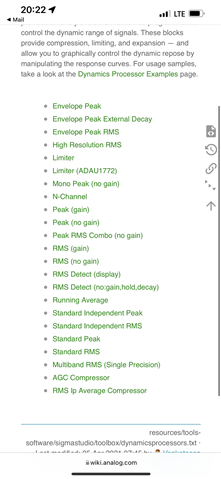
What you need to do is use the dynamics blocks that have an external sidechain input. Then you place a filter into this sidechain path.
The sidechain of a compressor is where the audio is rectified ( absolute value) then it integrates this signal over time to determine the level of the audio. It has time constants for the rise and fall times of this level measurement. Then based on this level and the threshold settings of the compressor, a gain factor will be applied to the audio in the main audio path.
So if you place a filter in the path of the audio only going to the sidechain, then you will limit when the gain factors will be applied.
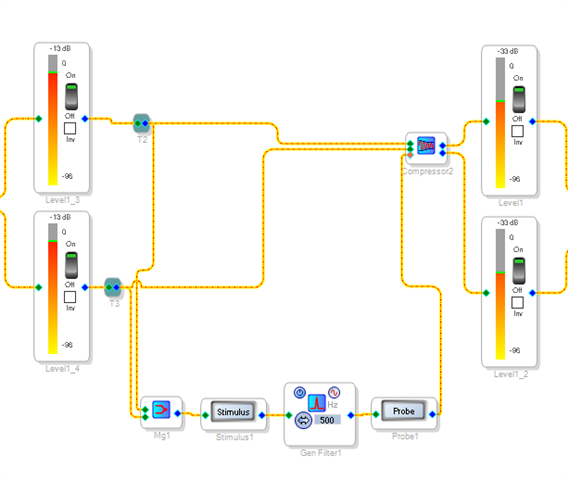
This is the project I drew up to demonstrate this:
As you see the stereo audio is summed using the Merger Block so it will lower the level by 6dB. You can simply sum the two channels then adjust the threshold and gain of the filter to achieve the same results.
Then the signal is fed into a 2nd order filter block set for a peaking filter. A peaking filter will only let pass the frequency it is set for. Keep in mind there is a Q setting for the bandwidth of the filter so you can adjust this for how close to 500Hz would it react to.
I also placed a stimulus and probe block so you can easily see the filter curve being applied.
Then this signal goes into the sidechain input of the compressor. Note that you do not have to get the absolute value because the sidechain input will do this for you inside the compressor block.
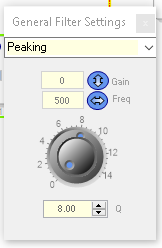
This is the filter setting I arbitrarily used. You will have to change this to suit your needs.
I used a fairly high Q of 8
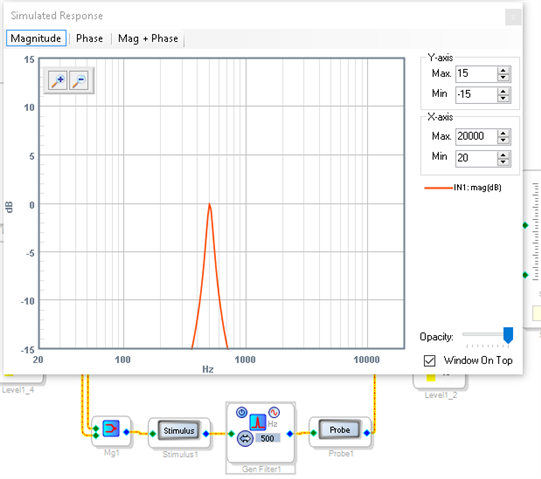
This is the response it produces:
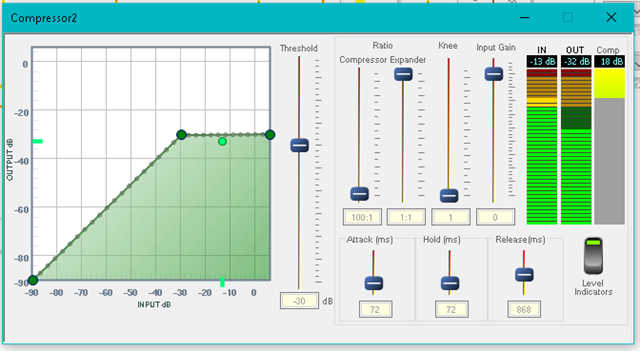
Inside the compressor GUI I set the threshold to a low value and you can see that at 500Hz there is compression going on.
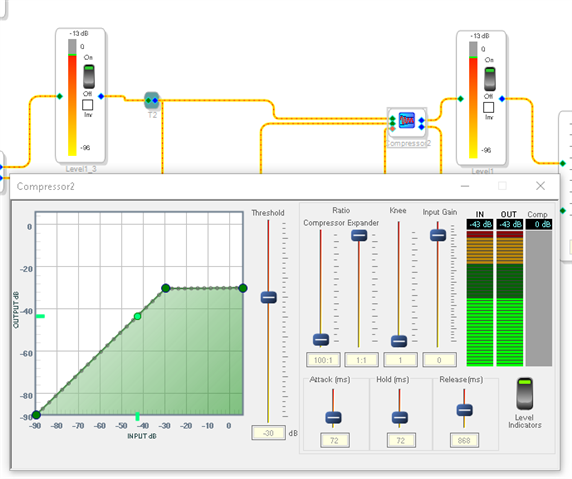
So then I set the oscillator in the project to 2000Hz. Here is the results but I have to further explaining to do:
Note that the meters in the project are showing -43dB and you see the green dot on the graph well below the threshold. The meters in the compressor GUI are measuring the detected level of the sidechain and applying the gain factor to this level. So you see the input and output is -43dB with nothing on the compression meter. So this means that a gain factor of "1" is being applied to the audio. If you look up above this window to the meters in the project, you will see that the RMS level is -13dB in and out of the compressor. The oscillator is set to -10dB and you see no gain change. So the 2000Hz is going through unchanged in level and the 2000Hz is being detected in the sidechain way down at -43dB so it is too low in the sidechain to cause any gain change.
I will attach the project so you can experiment with this yourself to see how this all works.
2402.ADAU1701 Sidechain Filtered.dspproj
I hope this helps to clear it up. You will have to make adjustments to make this work for your needs but this is a good starting point.
There are also other compressors in the library that have external detector inputs. They will function in a similar way.
Dave T
Please log in to reply.