Eval Board 1467 Problems writing sigma project to eeprom
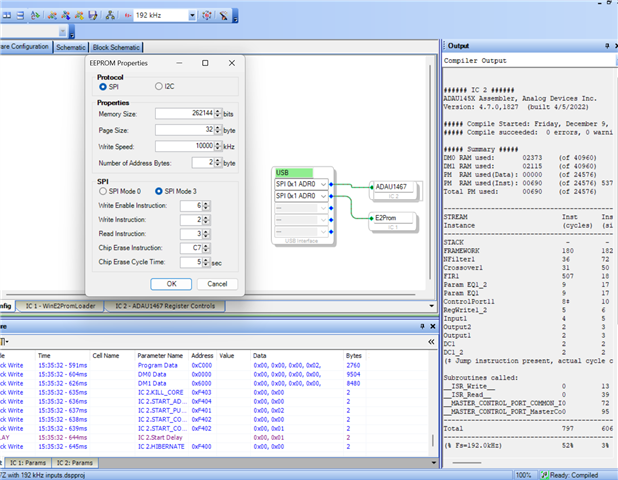
Hi - when I am trying to store my program on my eval board I am having difficulties.
I followed the step-by-step instructions for the kit with no luck.
I start by downloading project to the dsp, right click on the adau1467, write latest compilation to DSP, let it do its thing, flip the selfboot switch and hit reset and have no luck. I've attached my program.
As a heads up, the standalone boot switch is set to I2c because I am running 192Khz.
Any help would be great and please see my program attached.
Thank you,
Eric
Example EVAL-ADAU1467Z with 192 kHz inputs.dspproj
Audio Signal Processors
software
ADAU1467 SigmaStudio SigmaDSP
4.7
eeprom
adau1467
Eval Board 1467
SigmaDSP Audio Processors
Show More
Hello Eric,
The Standalone Boot switch has nothing to do with the EEPROM and booting the DSP. It is only for the codec.
I will explain the Standalone boot switch first.
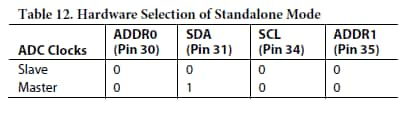
When in Standalone mode the Codec will be set to a certain mode of operation explained in the datasheet. That would be I2S format and 48kHz fs etc. To do this you ground the COMMs port pins, well, one pin is an input to select if the ADC clocks are masters or slaves. Here is the info:
The switch on the eval board will unground the SDA and SCL pins and connect them to the MP pins that the DSP master port I2C pins can be assigned to. This will allow you to control and boot up the codec from the DSP program. Very cool!
On VERY important thing. The codec can go into standalone mode at ANY time! If you ground the pins for longer than around 4 or 5ms it will go into this mode and you cannot exit it unless you reset the part or power it down. So flipping the switch to Standalone you enter the mode and cannot exit it easily. So this is part of the issues you are seeing. In your case, set the switch to I2C codec boot mode and then power up the board. Then never move it back to standalone mode.
Section 1 of dip switches S3 is the Selfboot switch which is for the DSP. That is the switch you have to turn on to set the DSP in selfboot mode.
See if this helps.
Dave T
Hi Dave - thank you for the great explanation!
I currently leave the codec boot mode set to I2C. And when I download, write the program to the dsp, turn on selfboot, hit reset, I get nothing.
Any thoughts?
Thank you,
- Eric
Hello Eric,
In addition to Dave's great reply,
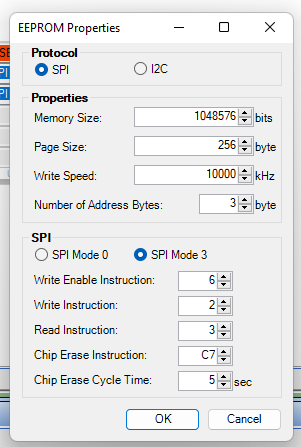
can you please try filling those window parameters as given below. The memory size must've caused this self-boot issue.
Please make sure that the self-boot switch is turned off when writing to the EEPROM.
The above part will mostly solve your self-boot issue.
If you are facing further issues in booting both the EEPROM and CODEC then kindly refer the below post once. It has some info on how to boot EEPROM and CODEC.
How to change sample rate on EVAL-ADAU1467 ? - Q&A - SigmaDSP Processors & SigmaStudio Dev. Tool - EngineerZone (analog.com). Read from third reply on this post.
Regards,
Harish
Hi Harish,
No luck. I went through all the suggestions outlined in that link you attached. Still no luck.
I tried to read from the eeprom by right clicking and hit read. My screenshot is below.
I went through these steps several times:
1) Remove the usbi from the board once you completed booting process (writing to E2prom) and then switch ON selfboot and put s2 to I2C mode. Then try reset.
2) If that doesn't work then, Remove the usbi and reset the board and connect it again, then program the E2prom. Once it's written then remove the usbi from the board and then turn selfboot switch ON and put s2 in I2C then try reset.
3) If it doesn't work , Instead of resetting after moving switch s2 back and forth , power OFF the board put s2 to I2C mode then connect the power again. Then try reset.
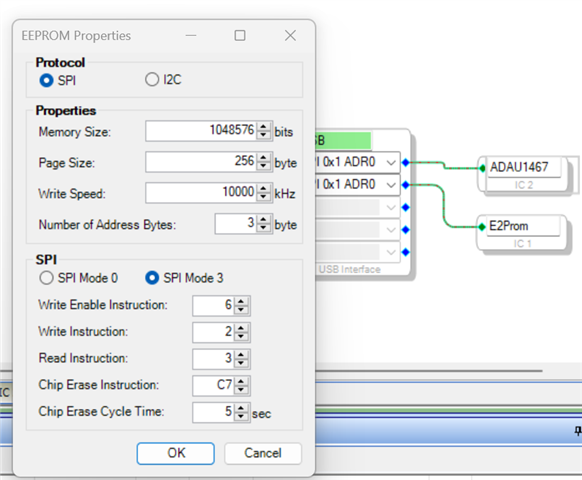
4) Made sure that SECONDARY I2C pin has to be in ON position (green color) while writing to the EEPROM under multipurpose1 tab.
5) Tried these steps again:
A) Put S2 switch in standalone mode.
B) Turn OFF the self boot switch.
C) secondary I2C pin in ON state (green). The above mentioned picture.
D) compile your project
E) Then write to the EEPROM (It will overwrite the previous program, if you want you can erase once but the secondary pin has to be in ON position).
After the step E.
F) Hit the reset button
G) Turn ON self boot switch
H) Put switch S2 to I2C mode
I) Then reset ( You can also switch the power OFF and ON).
And still nothing. I attached my screen shot below after I did all this as well.

Hello Eric,
Okay let's forget about the codec booting now. First, we will just try normal self-booting from EEPROM.
Put switch S2 in standalone mode as default. we don't need to touch it now. Remove those codec booting blocks (A DC block writing to a register and DC with Master control port) in the top of your project. You can also create a new project with an LED and an audio pass thru with a sine tone. Follow the booting procedure given in the user manual and try self-booting it. If it boots well then, we will confirm that there will not be an issue between DSP and EEPROM communication. And then we will see further about codec and eeprom booting.
Regards,
Harish
Hi Harish,
When I create a project and download it, the sine wave generator sound only works when the codec boot mode switch is on I2C and when the project is downloaded when codec boot mode switch is on I2C. Also, when I delete those dc blocks you mentioned, when it downloads to dsp there is no sound after that.
So when I delete the dc blocks and download it with the codec boot mode switch off (not on I2C, but in standalone), I followed the manual to write to eeprom. And when I right clicked to read the eeprom I still received the same error message as seen in my last post. I do not know how to turn on LEDs, and I have no way of checking audio because once those dc blocks are deleted like I mentioned, as well as the combination of being in standalone, I have no way of checking the audio still coming out. I can only right click to see what is on the eeprom.
Maybe you could provide me with a test project that has an led function built in.
Please let me know what else I can do.
Demo.dspproj
Hello Eric,
Okay, in your project there is a mismatch in sample rate as your entire project is at 192KHz whereas the codec is at 48KHz in standalone mode, So, leave the project as of now. Please try the basic project attached here with two led and a sine tone at all output jacks. Try to self-boot it by the instructions given in the user manual. I hope you already know that you can program the EEPROM only via the DSP.
Power OFF the board, put s2 in standalone mode. Turn OFF the self-boot switch. Power ON the board.
compile the project then right click on the processor block >> self-boot memory >> write latest compilation through DSP. Fill the window parameters correctly. Once the process of writing to eeprom is done and then press and release the reset button/power off and on the board >> Turn On self-boot switch and then press and release reset again. See if it boots (You can see the led glowing as configured and able to hear sine tone at all outputs). You can remove the USBi programmer once writing to the eeprom is completed.
If you want, you can also erase the eeprom once before writing to it. For that, right click the processor module and click erase memory through DSP.
Try this basic project: test.dspproj
This is a test project that runs at 48KHz. This is just to check the self-booting operation from EEPROM. Codec booting requires modification in this project (so use it only for self-boot from eeprom).
After you completed booting from EEPROM successfully then you can go to that 192KHz project and try booting the codec at 192KHz as well as the entire program from an eeprom. That can also be done with the comments given in the post linked above.
Please let us know your status.
Hello,
Good and bad news.
Good news is the project you sent me successfully writes to eeprom. Thats great.
So I went back to my other 192khz project and tried the same booting methods before and had no luck. When I try to self-boot, it selfboots the project you gave me. I'm guessing its an issue writing to eeprom then.
What suggestions do you have next to try and write to eeprom with this project?
Thank you.
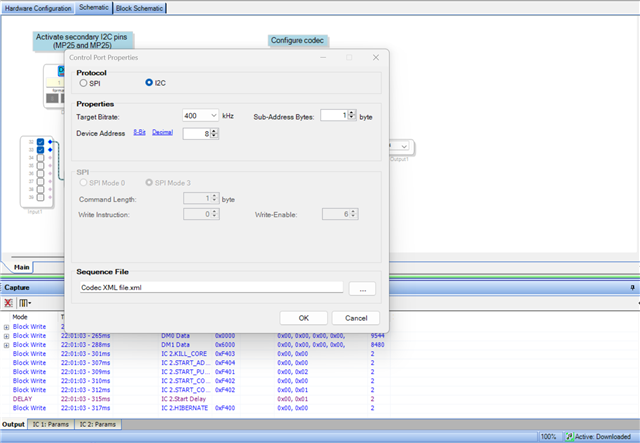
Here is my 192khz project again that I just tried. I also uploaded a screen shot my the codec config menu for the 192khz project.
Test 2 Design.dspproj
Fullscreen
Codec XML file.xml
Download
<?xml version="1.0" standalone="no"?>
<ROM IC="AD193x" IC_Address="8" Address_byte_length="1">
<dateTime>2018-01-24T15:53:18.9331122Z</dateTime>
<version>3.16.4.1751</version>
<page modetype="Mode 0">
<action instr="writeXbytes" len="2" addr="4" ParamName="IC 2.DacCtrl2Register" DspName="IC 2">41</action>
<action instr="writeXbytes" len="2" addr="0" ParamName="IC 2.HWConfiguration.PllCtrl0Register" DspName="IC 2">80</action>
<action instr="writeXbytes" len="2" addr="1" ParamName="IC 2.HWConfiguration.PllCtrl1Register" DspName="IC 2">00</action>
<action instr="writeXbytes" len="2" addr="2" ParamName="IC 2.HWConfiguration.DacCtrl0Register" DspName="IC 2">04</action>
<action instr="writeXbytes" len="2" addr="3" ParamName="IC 2.HWConfiguration.DacCtrl1Register" DspName="IC 2">00</action>
<action instr="writeXbytes" len="2" addr="4" ParamName="IC 2.HWConfiguration.DacCtrl2Register" DspName="IC 2">41</action>
<action instr="writeXbytes" len="2" addr="5" ParamName="IC 2.HWConfiguration.DacMutesRegister" DspName="IC 2">00</action>
<action instr="writeXbytes" len="2" addr="6" ParamName="IC 2.HWConfiguration.DacVolumeRegistes0" DspName="IC 2">00</action>
<action instr="writeXbytes" len="2" addr="7" ParamName="IC 2.HWConfiguration.DacVolumeRegistes1" DspName="IC 2">00</action>
<action instr="writeXbytes" len="2" addr="8" ParamName="IC 2.HWConfiguration.DacVolumeRegistes2" DspName="IC 2">00</action>
<action instr="writeXbytes" len="2" addr="9" ParamName="IC 2.HWConfiguration.DacVolumeRegistes3" DspName="IC 2">00</action>
<action instr="writeXbytes" len="2" addr="10" ParamName="IC 2.HWConfiguration.DacVolumeRegistes4" DspName="IC 2">00</action>
<action instr="writeXbytes" len="2" addr="11" ParamName="IC 2.HWConfiguration.DacVolumeRegistes5" DspName="IC 2">00</action>
<action instr="writeXbytes" len="2" addr="12" ParamName="IC 2.HWConfiguration.DacVolumeRegistes6" DspName="IC 2">00</action>
<action instr="writeXbytes" len="2" addr="13" ParamName="IC 2.HWConfiguration.DacVolumeRegistes7" DspName="IC 2">00</action>
<action instr="writeXbytes" len="2" addr="14" ParamName="IC 2.HWConfiguration.AdcCtrl0Register" DspName="IC 2">80</action>
<action instr="writeXbytes" len="2" addr="15" ParamName="IC 2.HWConfiguration.AdcCtrl1Register" DspName="IC 2">00</action>
<action instr="writeXbytes" len="2" addr="16" ParamName="IC 2.HWConfiguration.AdcCtrl2Register" DspName="IC 2">00</action>
<action instr="writeXbytes" len="2" addr="4" ParamName="IC 2.HWConfiguration.DacCtrl2Register" DspName="IC 2">40</action>
</page>
</ROM>
Please log in to reply.