Issue writing to eeprom
Hello,
I'm going to give you a bit of my backstory to make things clearer.
My dad and I like building speakers. Recently, we watched a couple of YouTube videos explaining how a DSP can have a drastic impact on the sound quality of speakers. After watching a few more videos and deciding that it could be feasible, we bought this ADAU1701 board from AliExpress with the USBi interface.
After a few months of research, tutorials, and experimenting, we made our first program for our speaker. We powered the amplifier, speakers, and DSP, then connected the PC to the DSP, pressed “Link, Compile, Connect,” and heard the music play. However, as soon as we detached the SDA and SCL pins, the DSP still worked but it was as if our program was gone. We figured out we weren’t writing to the EEPROM on the board.
We tried again, this time pressing “Write Latest to EEPROM,” but it now said that the connection to the EEPROM failed. We checked all the connections again but still nothing. We asked ChatGPT for help, and it suggested grounding the WP pin, which we did. Still nothing. So here we are; if you have any ideas, please comment them.
Thank you.
Audio Signal Processors
software
eeprom
sigmaStudio 4.7
SigmaDSP Audio Processors
SigmaDSP
adau1701
Show More
Hello,
I may be able to help. I don't have your board; I have a Dayton Audio DSPB-K and the companion USB Interface board, and they have a similar bizarre start-up sequence that, if not followed, results in what you're seeing. After years of doing this, here's the startup sequence I've learned, and it always works.
1. Power the DSP board. The DSPB-K has a USB micro; I don't see that on your board, so it must be hard-wired. If so, power to the board must be applied first.
2. Connect the USBi interface to the computer via USB cable
3. Bring up SigmaStudio, check that the hardware connection to the USB is green. This means SigmaStudio is connected to the USBi interface.
4. Connect the USBi interface to the DSP board
5. Compile/link/download, you should see Active Download (no communication error).
6. Write the latest configuration to the EEPROM
7. Test, all should be good.
8. Disconnect the USBi from the dspb board
9. Test, all should be good.
Hope this helps.
Hello Simplicity,
Have you found my YouTube channel yet? There are several videos using the ADAU1701.
(12) How to SigmaDSP and SigmaStudio - YouTube
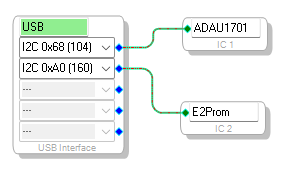
I looked for the schematic of the board you purchased and I do not see it on their web site. I do see that the WP pin comes out on one of the connectors. You may have to remove the write-protect to allow you to write to the EEPROM. Then you have to see what the address of the EEPROM is? I would be very surprised if it is not the correct address for the DSP to boot up.
From page 27 of the datasheet:
The ADAU1701 reads from EEPROM Chip Address 0xA1. The
LSBs of the addresses of some EEPROMs are pin configurable;
in most cases, these pins should be tied low to set this address.
Your Config page should look like this with these addresses:
Dave T
Hey Dave,
Yes, I’ve seen your YouTube series, and it’s thanks to that that I’ve learned to program with SigmaStudio, so thank you for creating it.
I’ve set up the configuration page like this, but now, after I press “Link, Compile, Download” and then “Write Latest Compilation to E2PROM,” a pop up appears with “Start Download” written on it and a progress bar that shows no progress. Any idea what it might be?
Thanks in advance for your time.
Please log in to reply.