ADAU1701 + SigmaStudio + REW = Auto EQ ?
Hello,
I own a DSP using the ADAU1701, I set it using SigmaStudio.
I'd like to use the Auto EQ feature.
Did someone can guide me to the right way to use Room EQ Wizard (REW) to get an "auto EQ" file (fiche file format, how to... ?) that can be used with SigmaStudio ?
Thank you a lot !
Regards
Audio Signal Processors
SigmaDSP Audio Processors
adau1701
I would like to know as well
I would also like to know how to use the measurements from REW to generate filters/EQ in ADAU with Sigma Studio
Hi Peter, this is a good question. I will make another post here shortly with information on how to do this.
Dear JoshuaB.
Thank you for the swift answer. I'll be looking forward to the post! ;-) Thanks again!
BR
Peter
Hi Peter,
You can import REW data into SigmaStudio by exporting the REW measurement to a text file; transforming the result into a format compatible with SigmaStudio; and using the Auto EQ block to generate the desired frequency response.
Now, into the details…
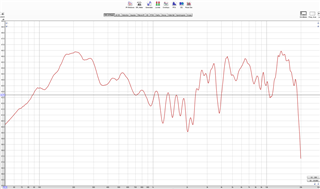
I’ve created this measurement of a tower speaker’s frequency response using REW v5.19.
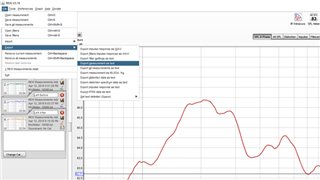
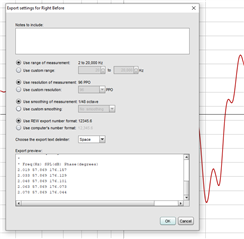
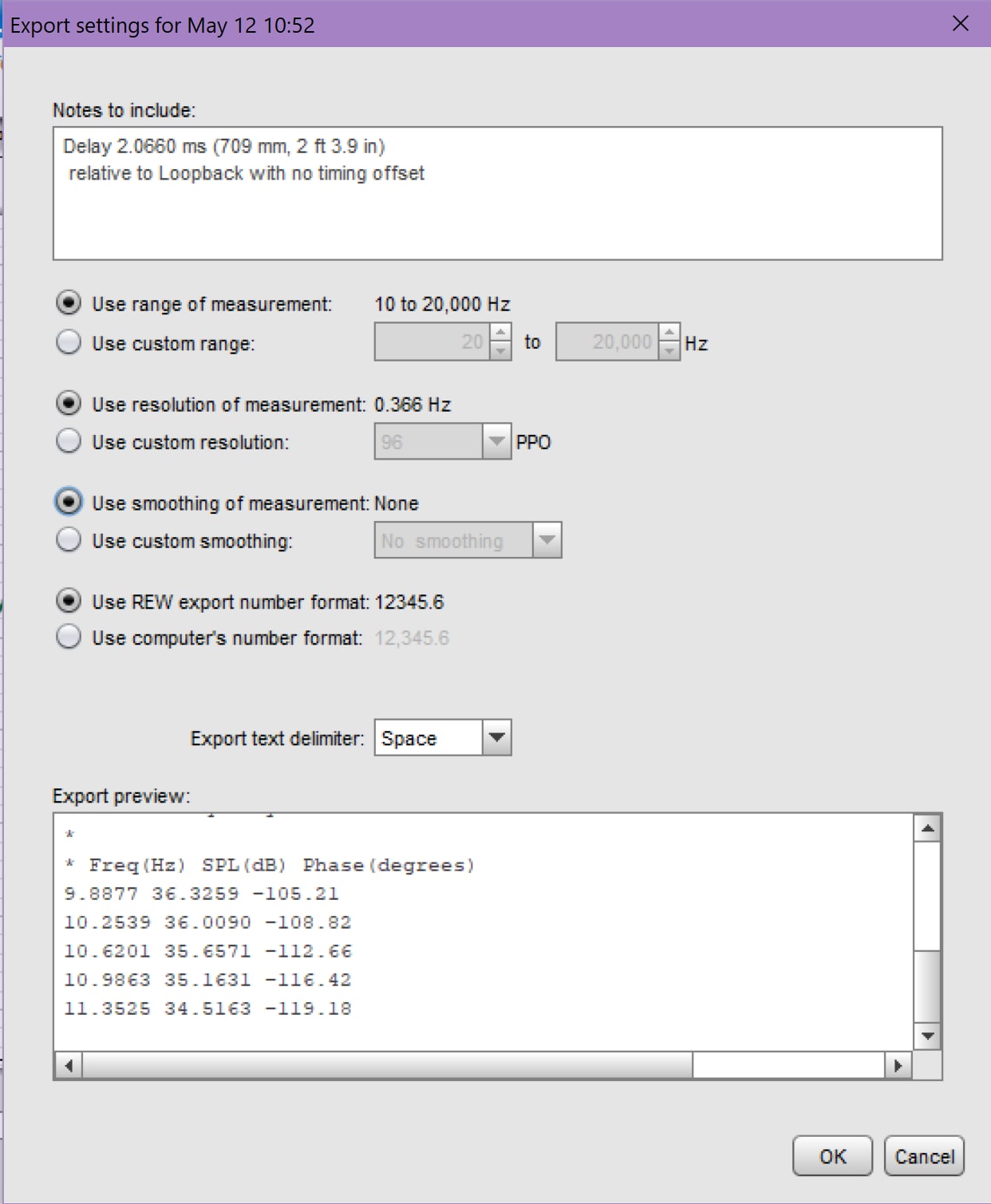
I exported the measurement data to a text file by choosing “File->Export->Export Measurement As Text”, as shown below. (Please note that the “Export to MLSSA” option is not correct for this case). The default export settings work well:
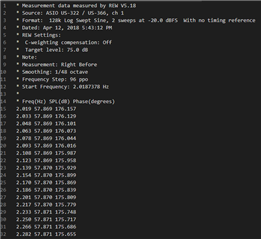
This file contains all the data we need, but it’s not ready for SigmaStudio just yet.
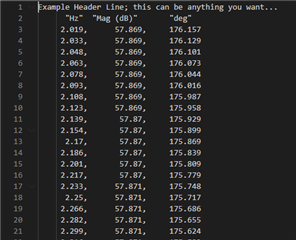
SigmaStudio is very picky about how the contents of this file is arranged. Luckily for us, EZ user SteveGnome posted a Python script that converts these REW text files to SigmaStudio compatible files (thank you!!) I have slightly modified it. If you store this Python script in the same directory as the REW text file, all you need to change is the filename, and you can add metadata in the first header line:
import numpy as np
from os import getcwd
fileName = 'TEST_RESPONSE'
filePath = getcwd() + '\\'+ fileName + '.txt'
fout = open(getcwd() + '\\' + fileName +'_MLSSA.txt', 'w')
# Sigma Studio Required Spacing Placement
fout.write('Example Header Line; this can be anything you want...\n')
fout.write(' "Hz" "Mag (dB)" "deg"\n')
# Load in data, skip the header.
# REW has 14 lines of header info
data = np.genfromtxt(filePath, skip_header = 14, delimiter = ' ')
for i in range(0, len(data)):
fout.write('{0:10}, {1:11}, {2:11}\n'.format(data[i, 0], data[i, 1], data[i, 2]))
fout.close()
print('Conversion Complete!')
You can run this script in the Python IDE of your choice. If you would like further assistance to get the script running, please reply to this post.
Comparing the original file to the Python-generated file, we can see that the measurement data is still perfectly intact; only the formatting has changed.
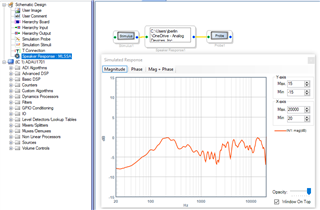
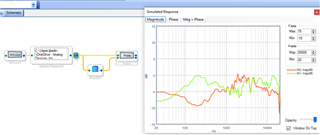
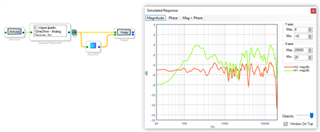
Now we want to make sure SigmaStudio accepts the file. Open SigmaStudio (I'm using SigmaStudio 4.5); create a new project with the ADAU1701; and add a Stimulation Stimulus, “Speaker Response: MLSSA”, and Simulation Probe block. Connect them as below. Click the Speaker Response block to select your file (the one from Python). Then click the Probe button, followed by the Stimulus button. If the file is OK, SigmaStudio will open a new window showing you the measured response (normalized around 0dB). This should look very similar to the plot from REW (although undersampled for visualization). If not, compare your file to the requirements on this page.
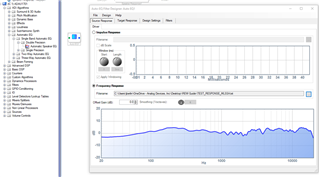
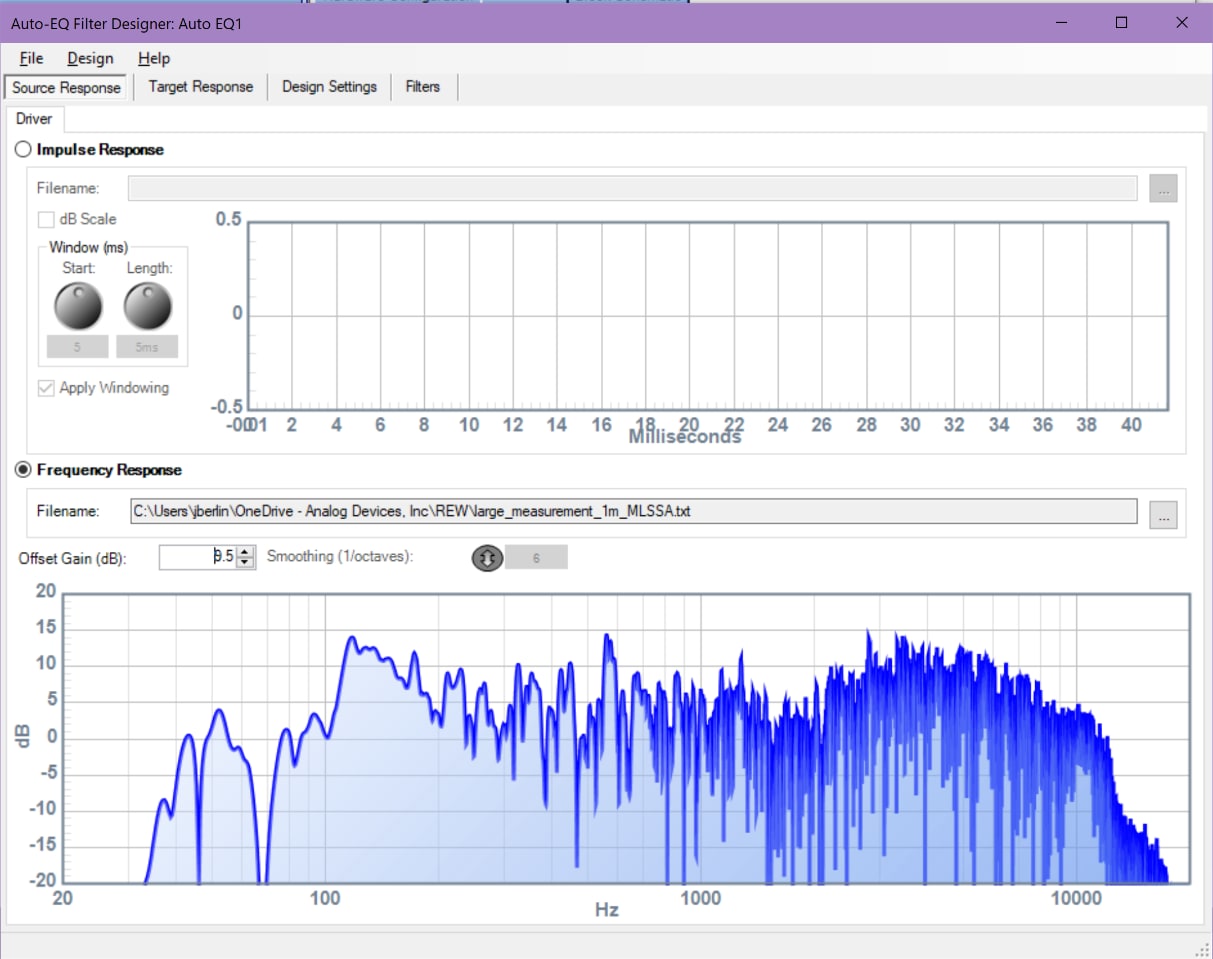
With the working file we can use the Auto EQ block to generate our filters. Drag the Auto EQ block into your project and click its center (the blue square with a gradient) to open up its configuration window. Click the Frequency Response radio button and select the response file generated from Python. SigmaStudio will show you the frequency response.
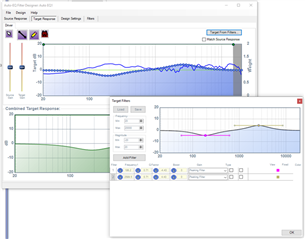
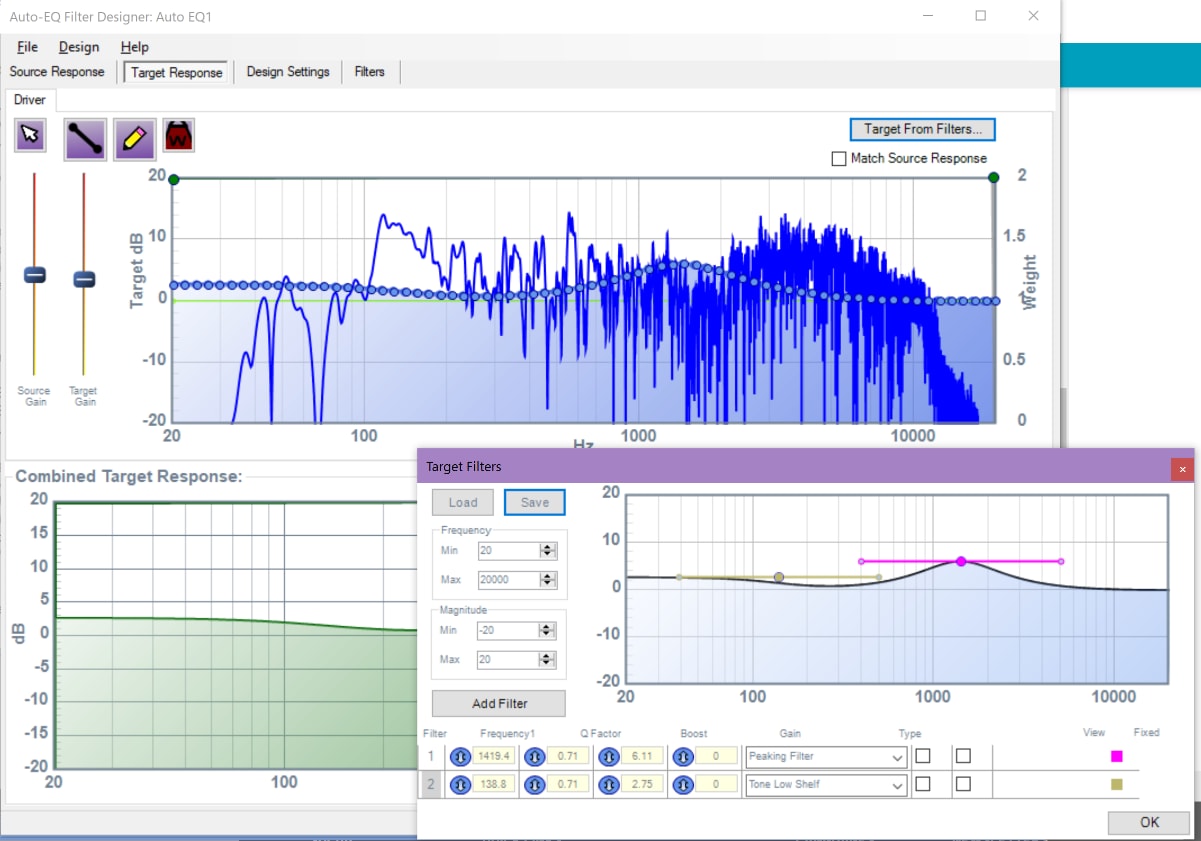
Navigate to the “Target Response” tab to describe what you would like the response to look like after processing. Personally, I like to use the “Target from Filters” option; add your preferred filters to the new popup window and Auto EQ will show them as well.
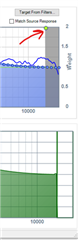
There is a little quirk with this part of Auto EQ as of SigmaStudio 4.5. The high cut filter indicated sometimes moves itself around when you change other parameters. Drag the green circle shown below all the way to the right if your response looks cut off at very high frequencies.
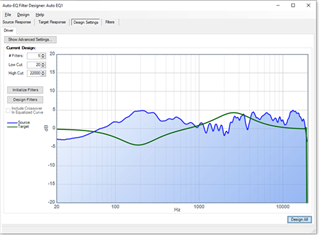
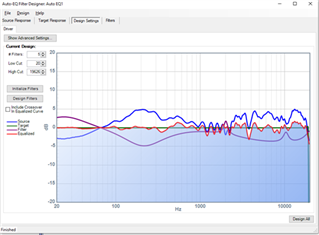
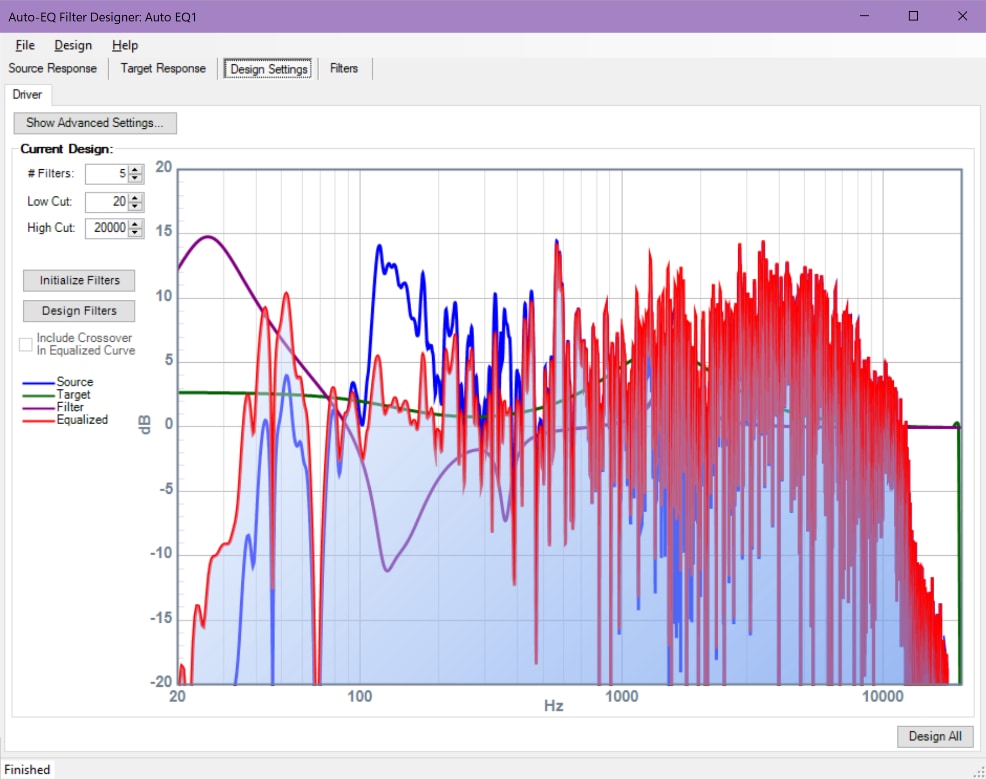
Once you’ve entered your combined target response, navigate to the Design Settings tab. Here you can change the number of filters in the chain, as well as many other optimization settings.
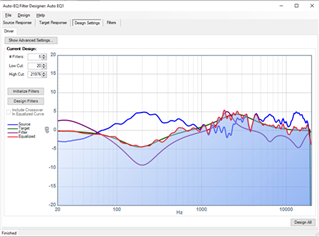
Once everything is set, click the “Design All” button. SigmaStudio will calculate all of the filter coefficients. The resulting plot shows that the response has been corrected. Now, you can insert the Auto EQ between the Stimulus and Probe blocks to verify that the filters are properly compensating for the speaker response.
Great! Now we can build the rest of our project.
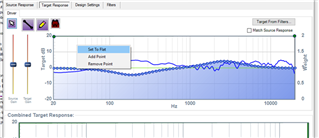
Let’s look at one more example; a flat response. Going back into the Target Response tab of the Auto EQ block, you can right click in the empty area of the upper plot and click “set to flat”.
Then, in the Design Settings tab, click “Design All” again and SigmaStudio will recalculate the filters. Once again, the stimulus and probe verify that the filters are compensating for the speaker’s frequency response.
Finally, let’s verify that the filters work in the real world.
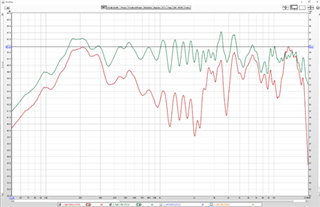
For this last image, I’ve programmed these filters into my ADAU1467 evaluation board. (This will work with ADAU1701 as well). The DSP is placed in the audio signal chain between REW’s output and the speaker amplifier. I took a new measurement in REW and overlaid it with the first one, with the Auto EQ’d result in green. Notice how much flatter the response is between 100Hz and 20kHz.
The response still seems to drop off significantly below 100Hz. This isn’t the fault of the Auto EQ. Unfortunately, the room I was in is not large enough to support measurements at these very low frequencies.
So, to summarize, we can get great results using SigmaStudio’s Auto EQ based on measurements exported from REW. It takes a little massaging to get the exported files into the correct format, but thanks to the Python script above, the heavy lifting is already done.
Please let me know if you would like further details.
Joshua
Unknown said:
If you would like further assistance to get the script running, please reply to this post.
Yes, please... It's a bit more complicated than I'd hoped, but I'll certainly give it a go...
Thanks again for your swift and kind service!
If you are new to Python, I recommend installing Anaconda Python. You can then open up the "Spyder" IDE that comes with it and copy and paste the code. If all goes well, it should just run. Otherwise I can help further.
Hi mr. B.
Got the Python stuff working. Wasn't as hard as I'd thought it would be. :-)
Also got the initial "Stimuli/Probe" working, designing filters "Design all" also down. But the corrected curve looks a bit strange...
Measurement from REW:
And the designed filters in SS:
I had anticipated a bit different outcome than this..:
No visible filters or correction.
I get no response from Stimuli/Probe:
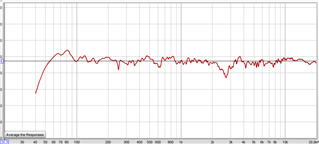
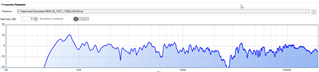

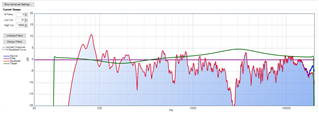
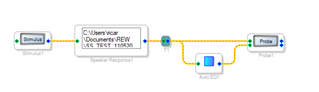
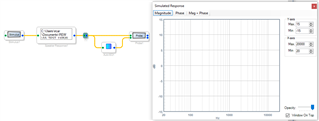
It's the "design all" part I think is going a bit wrong... Can you help?
Note: The room in which I did the measurement also suffers the same limitations as yours..: Not big enough for making true bass measurements. But I'm just trying to figure the whole process out, and THEN I go to the actual part that matters...
Looking forward to hearing from you.
BR
Peter
Hi Peter,
I see what you mean, it doesn't look like the filter design step completed properly. To my knowledge we haven't seen this issue before.
Can you try hitting "Initialize Filters" before "Design Filters"?
I am curious what happens when you click "design filters". Does SigmaStudio show an iterating process on the GUI, or behave as though nothing happened?
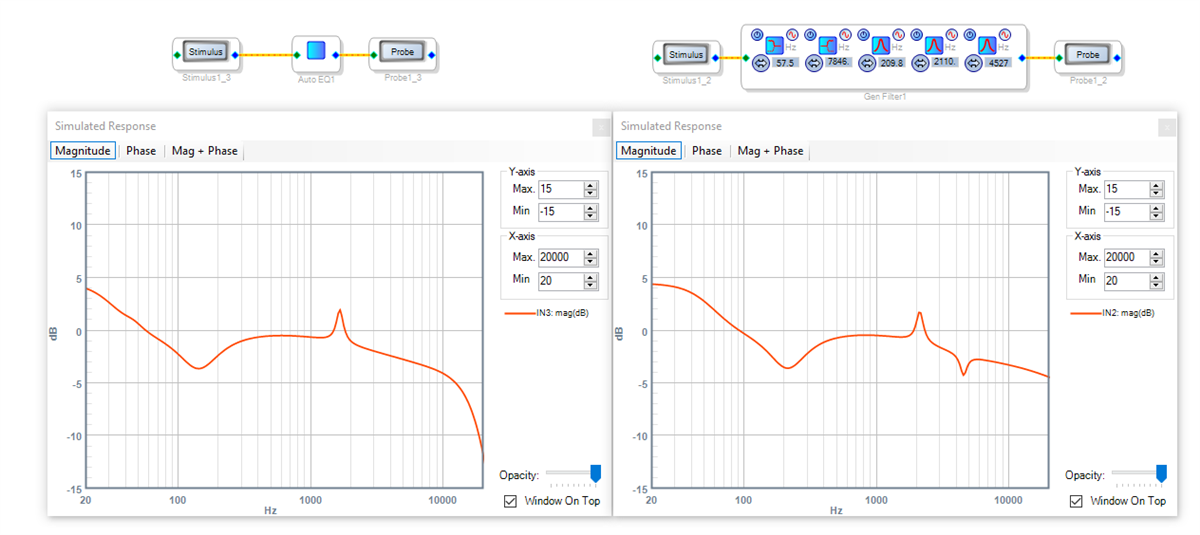
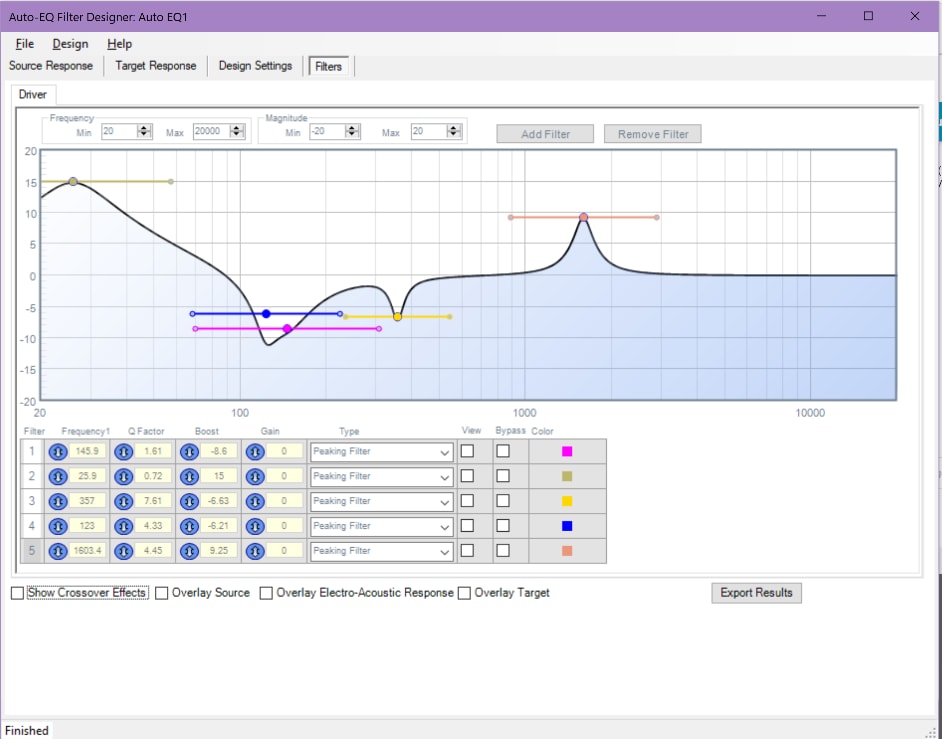
FYI, we are aware of a bug in the Auto EQ cell where high frequencies are attenuated. There is a low-pass filter (part of a crossover) which is present in the 2-channel version of the block and it wasn't disabled properly for the 1-channel version. You can see this in the plot below. Our programming team is working on a fix. In the meantime, I would recommend manually copying the designed filters' parameters over to standard second-order filters.
But we have to design them first!
Joshua
Hi Joshua.
Let me start by applauding you for an TRULY excellent service! I am impressed by the speed you respond.
I have tried to do the Initiate Filters and Design Filters, but all that seems to happen is that all bottoms/options are greyed out and the program pauses. I then have to go to File and start a New session. Am I making sense to you?
BR
Peter
Hi Peter,
This makes perfect sense, yes. When the measurement file has a lot of points SigmaStudio will hang trying to compute filters. It will finish but could take hours. There are some things we can do in REW to help speed things up.
First I'll duplicate the problem.
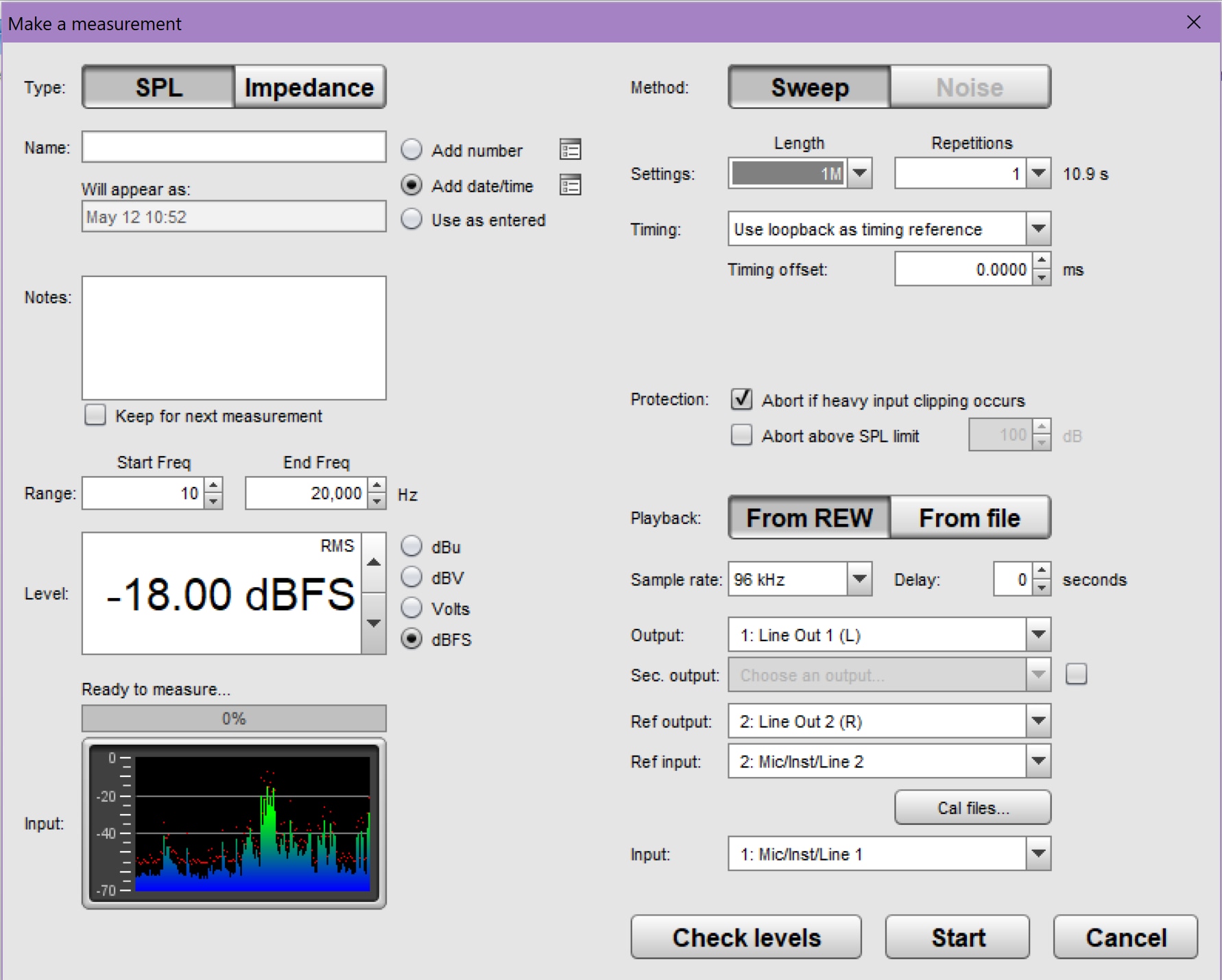
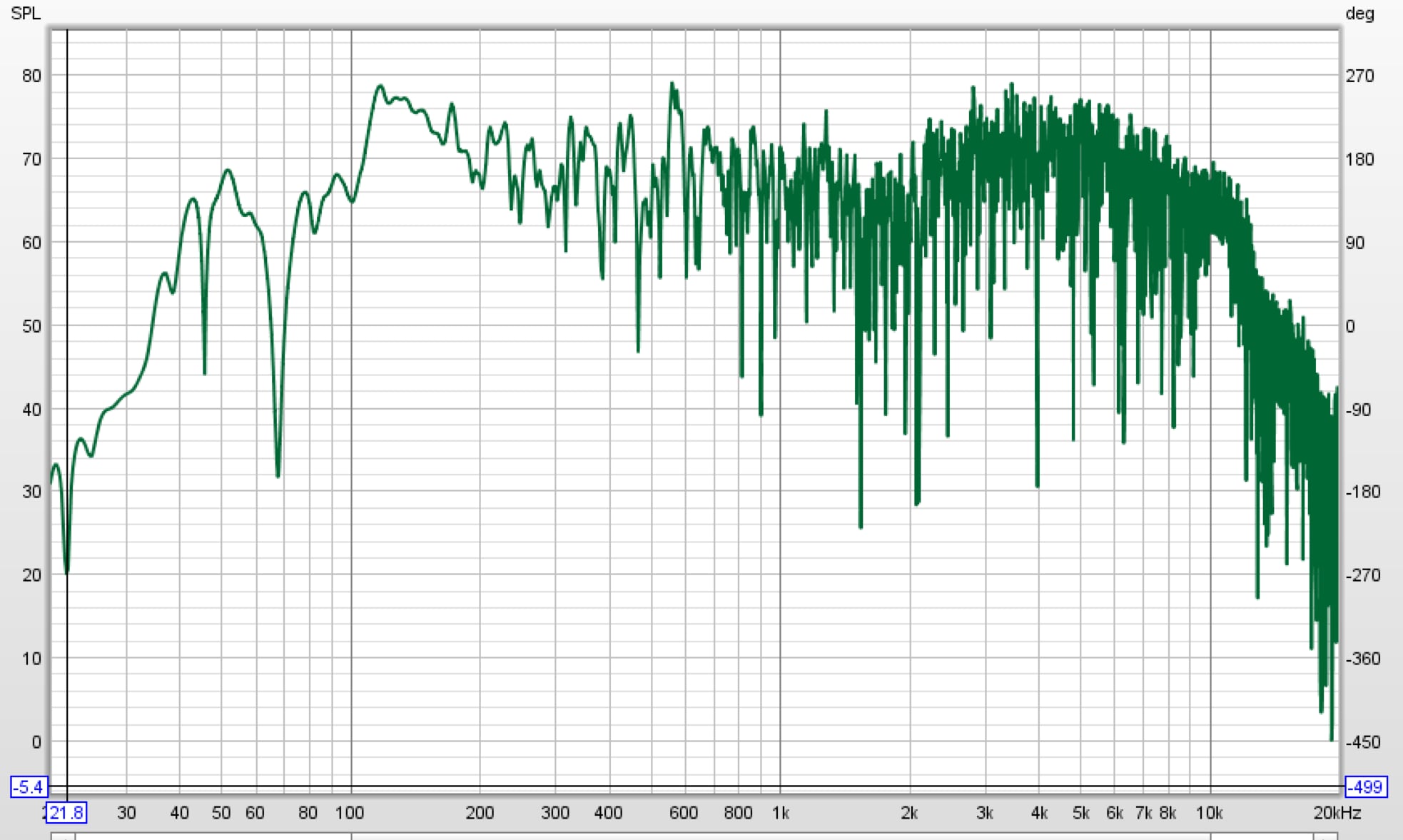
I've just run a measurement of 1M points in REW with the settings shown here. It might not be the same number of points you used, but it will illustrate the point.
The response is below. I'm in an untreated room at home so it is not very flat. Good for testing the Auto EQ!
I exported this measurement with the default settings shown here.
I pushed this data through the Python script and imported it to SigmaStudio.
I also designed a target response:
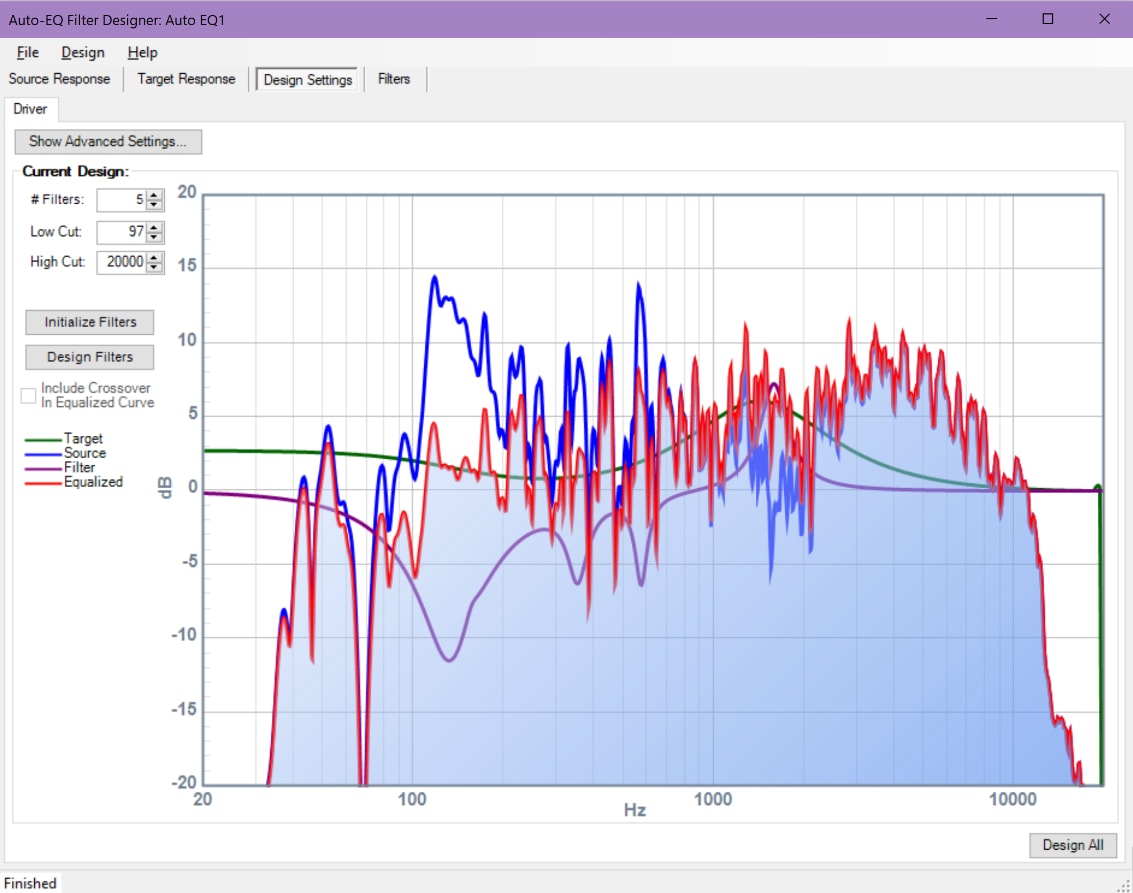
I went over to the Design Settings tab and hit "Design All". About 14 minutes later (!) I finally got a result. During those 14 minutes the program appeared unresponsive, but it did eventually finish.
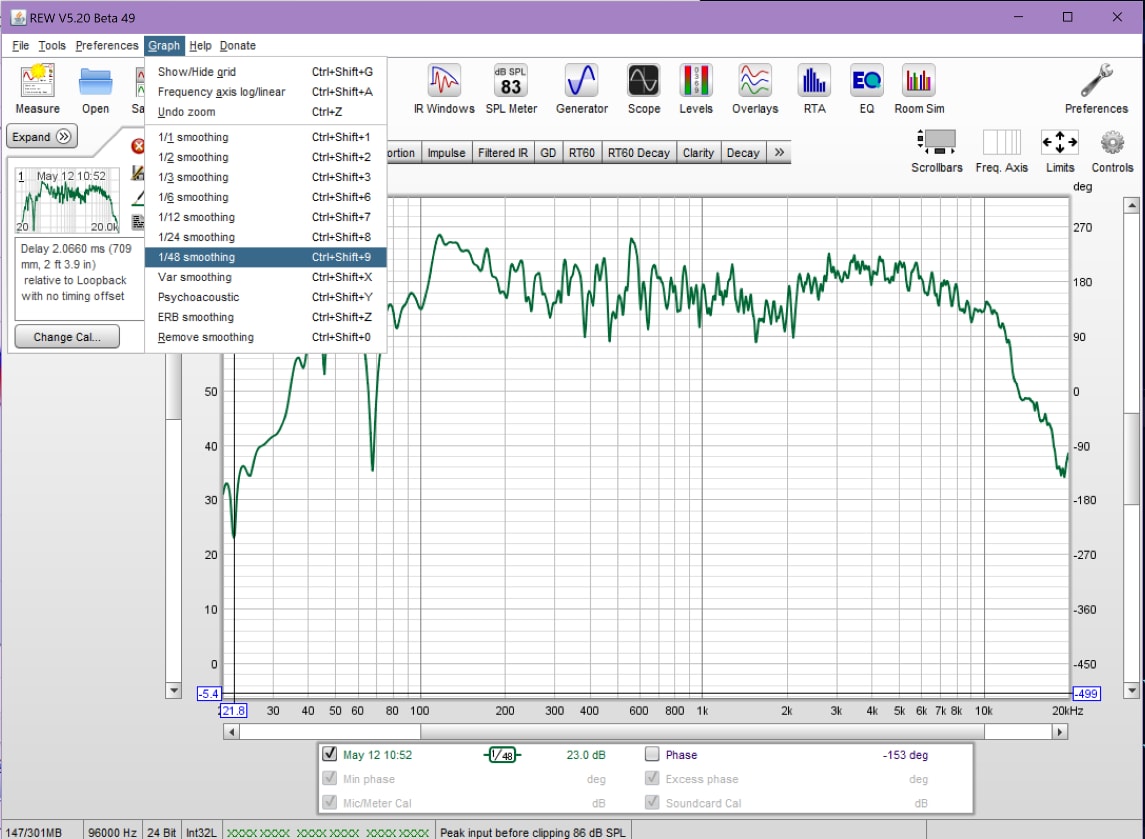
Now, going back to REW, let's apply 1/48 octave smoothing, available under the Graph menu. The response looks about the same; the dips/peaks are still in the same places, so the Auto EQ can still create a high quality inverse filter.
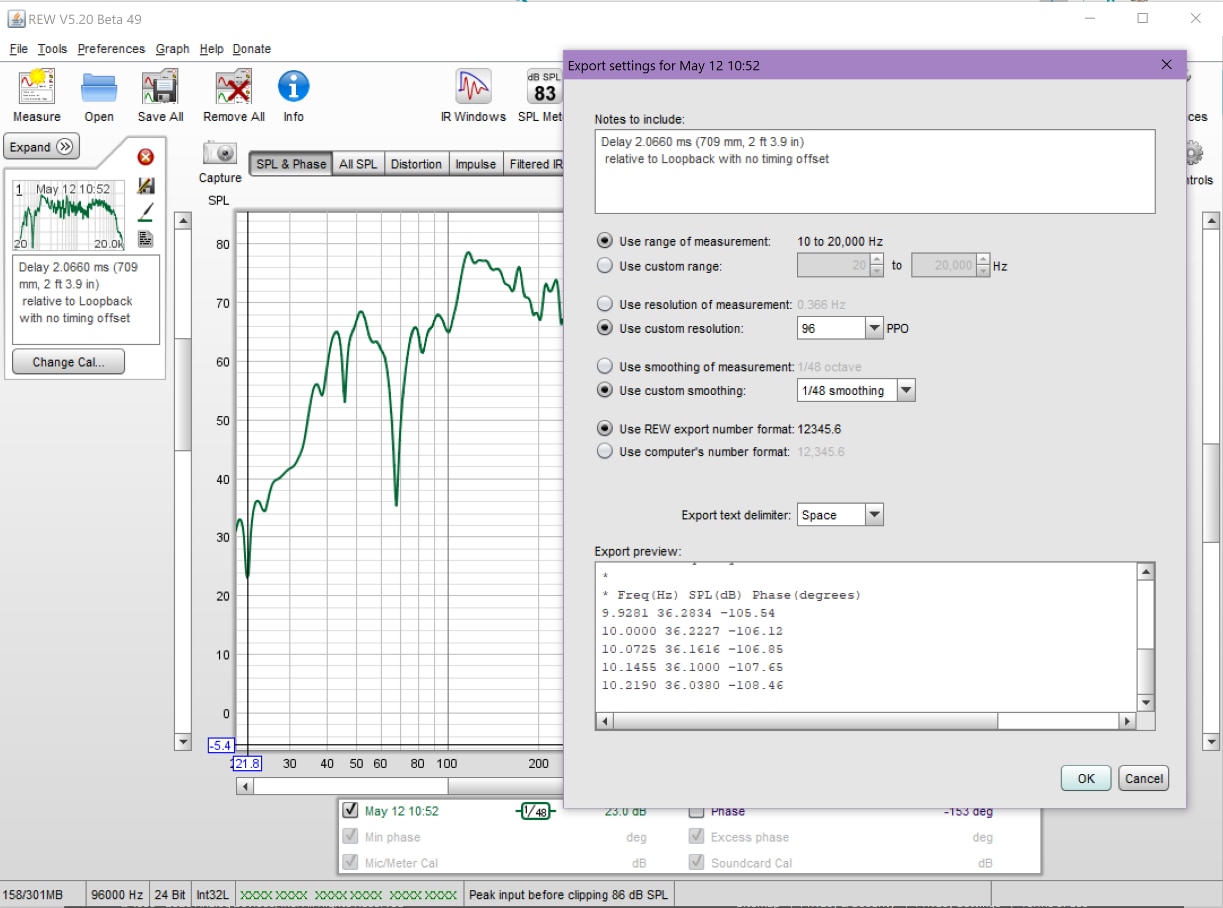
Now we alter the export settings as follows to reduce the number of points in the file while preventing aliasing:
I ran the new file through Python, input the file to Auto EQ, and hit "Design All" again. This time the process took about 15 seconds; much better.
So I think this is the solution: for measurements with a very large number of points, smooth the response if you want to speed up Auto EQ processing.
Joshua
Hi Joshua.
Thank you for an ever impressive response time!
I'll try your solution ASAP and report right back!
BR
Peter
Hi Joshua.
Here are the screen dumps:
Bottoms grayed out
After a minute of waiting (still grayed out)
Another 6 minutes
After 10 minutes:
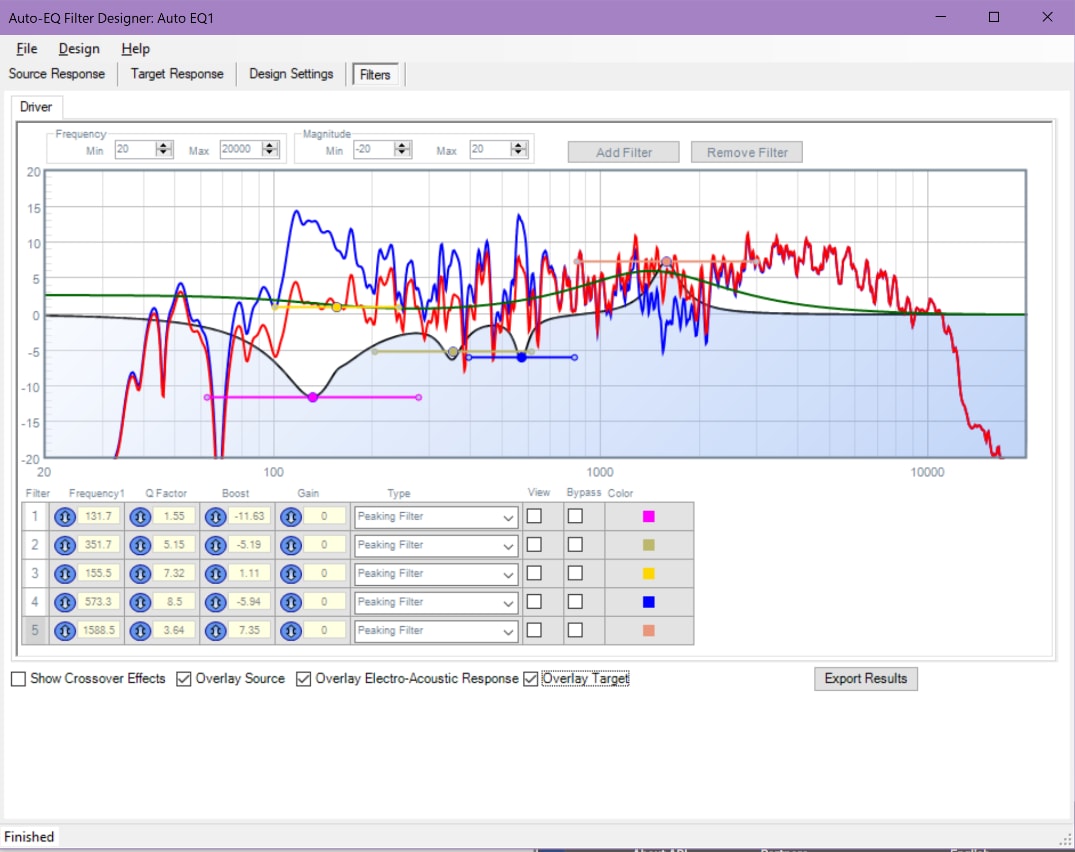
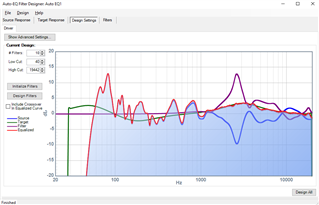
All 5 filters has been used, all above 1 KHz... Why is that?

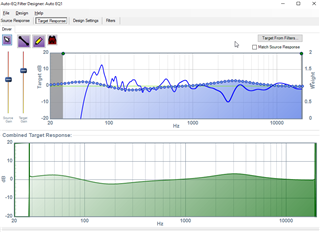
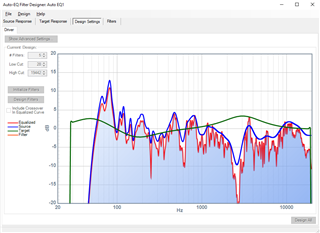
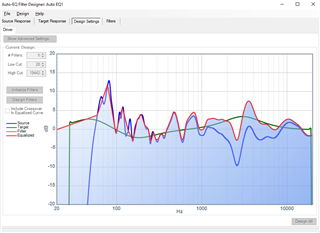
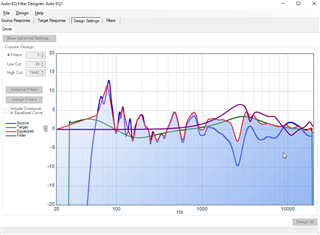
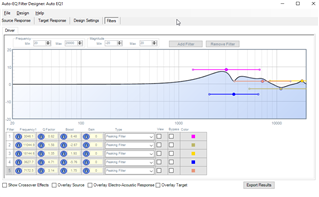
Again with 10 filters; all above 1 KHz...
Now the Stimuli/Probe works..:
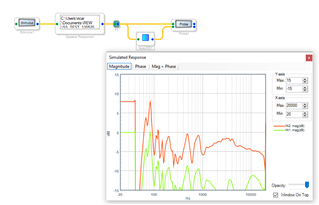
Great thread! Thank you all for the info.
I am also interested in AutoEQ and wrote a Python package for it.
Please refer to : ez.analog.com/.../autoeq-on-demand---using-esp32-as-tcp-ip-channel-server
Hi Peter,
It looks like everything is working properly now, is that right?
Why the algorithm chose to put your 5 filters above 1kHz is a bit of a mystery to me since I'm not the author of the algorithm. Whichever optimization criterion are in use pointed to your result as the best possible outcome with 5 filters. Whether that will produce the "best possible" sound from your device is a bit harder to say!
There are some parameters you can fiddle with in the advanced settings in the "Design Filters" tab which might point the algorithm to another solution. I've never fiddled with them myself.
Joshua
Hi,
You don't have to use python script to formatting MLSSA data file. I think I found the easier way.
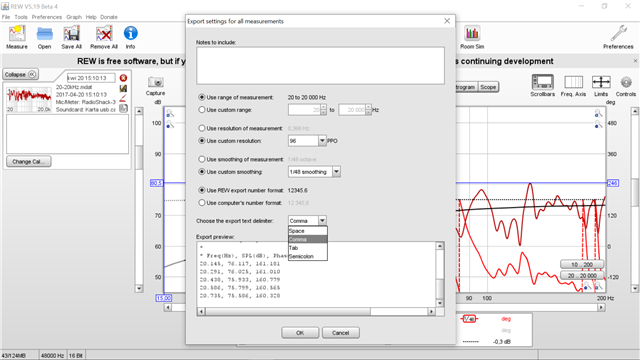
1. When exporting data from REW just change "export text delimiter" to comma :
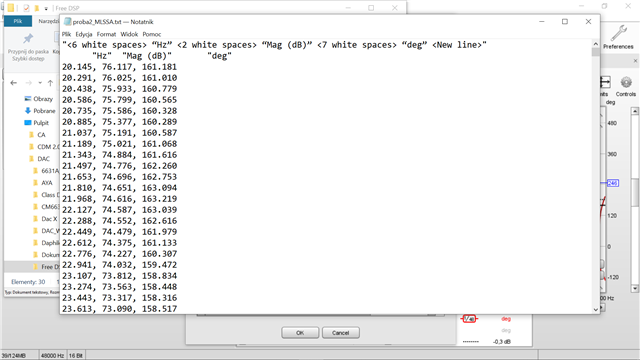
2. Then in notepad change the header according to this:
"MLSSA File Format
Note: Speaker files are ASCII text in the MLSSA format, with header information in quotes on the first two lines. Data are delimited by commas and by line. Note: SigmaStudio only accepts the MLSSA file if the 2nd line in the header of the matches the following exactly: <6 white spaces> “Hz” <2 white spaces> “Mag (dB)” <7 white spaces> “deg” <New line>."
The MLSSA file will look like this:
The second line of the header is essential !!!
Regards,
Robert
Hi Robert.
That surely seems like a much easier and faster way! Thank you for your input. I'll try it out soon.
BR
Peter
i got this work this script to work after rolling back rew to 5.19. the default format for the .txt export is different in the newer versions. just fyi for anyone trying this in the future :)
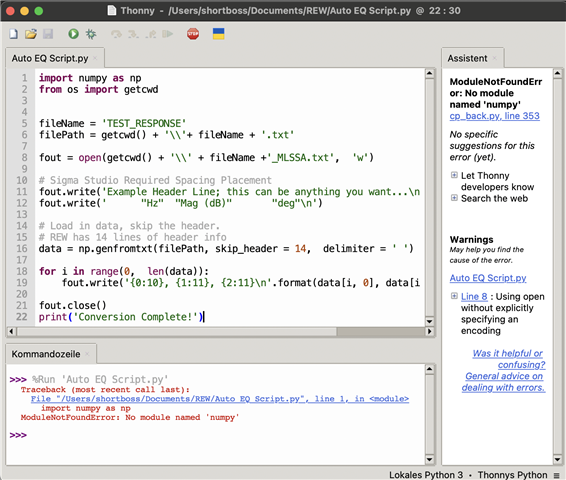
running on parallels, but tried on windows machine as well an get this message. where is my mistake?
Hello 876Digital,
It looks like it cannot find the file named "Numpy". I am not sure exactly where it is looking but the file is not in the correct folder.
Dave T
Hi Joshua.
It certainly looks like it's working now... The part with converting the REW file to a SS readable format; check!
I now have to fiddle around with the basis (REW measurement) and the result (SS auto EQ) to see what works for my speaker.
Thank you for your support and expertise!
Just one last thing: The limiters in SS, how do I get the best guidance for using them? What blocks am I looking for?
BR
Peter
Hi Peter,
I'm glad everything is working now!
Regarding the limiters, they are in the tree under the Non Linear Processors section. We have some Wiki documentation for these blocks:
https://wiki.analog.com/resources/tools-software/sigmastudio/toolbox/nonlinearprocessors
There have also been a few informative EngineerZone threads in the past:
https://ez.analog.com/dsp/sigmadsp/f/q-a/65458/adau1701-sigmastudio-limiter-questionings
https://ez.analog.com/dsp/sigmadsp/f/q-a/106453/compressor-selection/315736#315736
https://ez.analog.com/dsp/sigmadsp/f/q-a/67116/limiter
If you have any questions on the limiters I would ask that you make a new thread for them. This will help us find it more easily.
Regards,
Joshua
Hi Joshua.
Excellent. Thank you!
Please log in to reply.