Sigma Studio GUI bug
Greetings,
I've encountered a bug a few times now in Sigma Studio, and wondering if anyone else has seen it or found a workaround.
Occasionally, algorithm 'blocks' become blanked-out - only their outline, name, and connections are visible, but none of their parameters. Other blocks may not be blanked-out entirely, but their parameters are locked-out and can't be edited. This is the case for the 'DC' blocks shown in the attachment.
I've tried cutting and re-pasting the entire dsp flow. This usually restores the image of the parameter fields, but the parameters remain locked out - clicking a parameter text field simply selects the algorithm block. I've also tried closing and re-opening both the dspproj file and Sigma Studio itself, and trying different versions of Sigma Studio (I'm using v3.8 primarily, but sometimes use v3.9-beta, as other GUI bugs relating to text display in the Hardware Control tabs seem to have been fixed there). Closing and re-opening SS sometimes works, but not always.
The GUI allows zooming in and out of the schematic diagram using <ctrl+mouseWheel>. This would be great, except that this (habitual) action seems to cause this locked-out or blanked-out behavior - not consistently, but frequently.
As you can imagine, its tough to get much done in SS when the GUI doesn't allow adjustments to algorithm parameters and when all the tricks above fail to resolve the issue. Any thoughts?
Thanks,
Peter
Hi Peter:
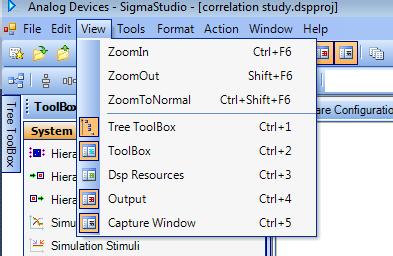
We apologize for the inconvenience. We have seen this in the past, it's an annoyance.The good thing is that we know what's causing it. It is caused when users inadvertantly Zoom to a level different from 100% where controls are no longer editable. What shows as visible in this Zoomed State is a bitmap that represent the controls that actually got refreshed (as expected, notice all controls have a bitmap in the background for when zooming). The way to solve it is simply by zooming to normal.
In recent compilations of SigmaStudio the zooming controls for the toolbar have been restored. Please use those to restore your Zooming to 100% when you need to edit the controls. Ctrl-Shift F6 will also restore to 100%. And Shift or Ctrl with the MouseWheel will also modify the Zoom Level
Please let us know the resutls.
Regards
Miguel
Thanks Miguel, I'll try this next time it locks up on me.
Miguel - I don't see the zoom controls in the 'view' menu of my Sigma Studio 3.8. What is the latest stable version of this software, and where can I download it?
Thanks,
Peter
Hi Peter,
It seems that the zoom menu was removed from newer versions of SigmaStudio, but I think it will be added back in soon.
To zoom to normal size, try the Ctrl+Shift+F6 keyboard shortcut.
You can get the latest version of SigmaStudio from the Analog Devices website at http://www.analog.com/SigmaStudio. This is the programming tool for all of the SigmaDSP audio processors. You will need a myAnalog account in order to download (if you don't have an account, the page will help you to create one). The latest version will always be available at that link.
Miguel, Brett -
Shift+Ctrl+F6 seems to do the trick in order to restore parameter control to algorithms that have been 'bitmap-locked' by my zooming in and out.
For large files, zooming out and then back in is a very quick and convenient way to navigate. It would be great if the GUI could do this without loss of parameter control at any zoom level. For now though, being able to quickly get back to 'unity' zoom will do just fine.
Thanks very much for your prompt replies on this issue!
Peter
Hi Peter,
Miguel might be able to comment on this at a more detailed level, but I think the libraries we are using for displaying the controls unfortunately have issues with zooming. This is definitely a feature on the wishlist, but I don't know how feasible it would be to implement functional, zoom-able controls without significantly re-engineering the software.
By the way, if your project is getting too large, it might be useful to employ our Hierarchy Board feature. I wrote a tutorial about that here: https://ez.analog.com/message/52938#52938
We also have a pretty cool Alias feature. KJBob wrote a nice tutorial about that here: https://ez.analog.com/message/111711#111711
Hi Brett,
The edit-while-zooming issue isn't a deal breaker; I'm sure that there are higher priorities than addressing this little issue, especially if its a PITA to do so...
One other (minor) observation regarding zooming: It seems the GUI responds differently in 3.9 vs. 3.8 to Shift+Mouse_Wheel. In 3.8, Shift+Wheel lets you scroll side to side, while Ctrl+Wheel zooms in and out. Used together, they can be a great way to navigate around a project. In 3.9, Shift+Wheel and Ctrl+Wheel both zoom, and unlike 3.8, they zoom in and out of the upper left corner of the project rather than the mouse point. Perhaps others will disagree, but this less useful to me.
The hierarchy board feature is very nice. I'm using a dozen or more already. I'm sure I'll get into aliases soon as well.
Cheers,
Peter
Hi Peter,
Actually, maybe we could take it a step further and do what some CAD or schematic capture programs do:
Ctrl+Wheel = Zoom
Shift+Wheel = Horizontal Scroll
Alt+Wheel = Vertical Scroll
I'll see if this is feasible from the software team.
Thanks,
Brett
Hello Peter,
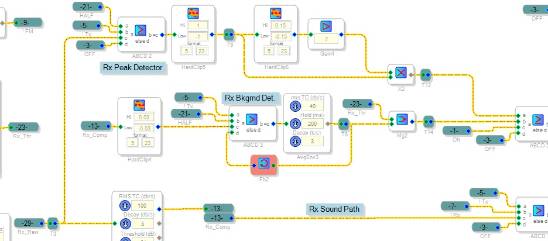
You'll find aliases to be incredibly useful. As an example, the schematic section shown below would be an unholy mess without them:
Best regards,
Bob
Hi Bob,
I started using alias's yesterday for some spaghetti-unravelling. I agree - very handy to improve the readability of a complex schematic.
@ Brett - that sounds great, though its basically what already exists in 3.8 (except that you don't need 'alt' for vertical scroll; the wheel alone does that.)
Thank you both for being so responsive. Overall, these are very minor details; SS has been very easy to use.
Here's another little question for you though, since this thread has already swerved way beyond my original issue: Your algorithm toolbox has a lot of great stuff, (I'm working with the ADAU144x), but many of these algorithms have subtle differences that become lost once the algorithm is instantiated in the GUI. For example, a single-precision 'General 2nd Order' Filter appears identical to double-precision version once they're dragged into the schematic window. Similarly, the Full Range vs. Standard Range versions of the Mono / No Ext Detector Input / RMS (no gain) compressor appear identical once they're instantiated. If I trade complete dspproj files with my colleagues, is there a way to find exactly which algorithm they used? It would be very handy if, for example, the right-click menu for any given algorithm showed its path in the toolbox, or a link to its help file on the wiki. Just a thought...
Thanks again,
Peter
Hi Peter,
Thanks for articulating the need for algorithm ID and access to help. I too have noticed that certain algs are indistinguishable once used in a schematic, but have not paid much attention.
Selecting any item and pressing F1 usually brings up its built-in help -- however, newer blocks aren't in the help file because ADI is concentrating on the wiki to provide help.
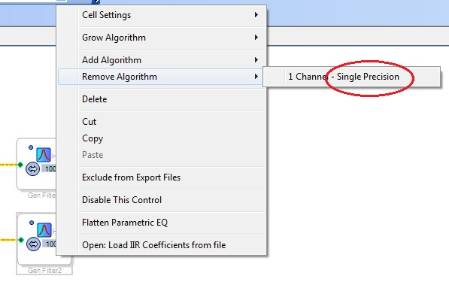
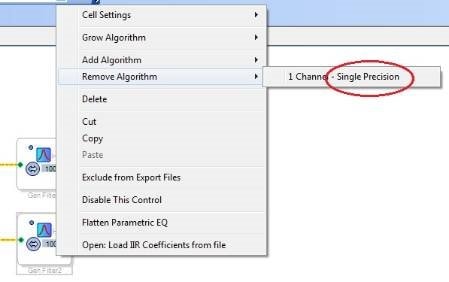
Here's a workaround to distinguish similar blocks in a schematic: Right-click the block, then mouse over the Remove Algorithm choice. The block's full name appears:
This also worked for the two dynamics processors you mentioned.
Bob
Hello all,
I add this question to this thread because I think it fits best here :
sometimes when I scroll the window I cant find the blocks anymore because the page is so big and its like "finding the needle in the hay" , :-)
Could you implement a button : "fit size", so your schematic gets automatic fit to the size of the page if you lost it ?
Hi Stephan,
If the schematic view page get's too large to manage you can try the following script command to auto scale and crop the design window. This requires the most recent version of SigmaStudio 3.10.0 beta
Type this in the script editor:
(ss as IScriptedUI).AutoCropSchematic();
It may take a minute or so to process all the views for a large project. Once it is complete, you may need to click on the scroll bar arrow button in the schematic view, or save and reopen the project.
Hope that helps.
Best regards,
John
Thanks John. Works !!
This is still an issue in v4.7 in 2024. with the latest build released in 2022. Hi rez monitors render the icons too small to read from a reasonable distance. Isn't it about time to get around to fixing this?
Hello Ztatic,
The program uses library extensions for the graphics that are quite old now. This version of SigmaStudio development was started over 20 years ago. It is not possible to implement a zoom in or out feature and still have control of the schematic. This is why there is a "Zoom to Normal" command in the view menu. This is not a bug and nothing we can do to change this.
What we did is started from scratch and that is what SigmaStudio+ is designed to address some of these issues. With SigmaStudio+ you can zoom in and out and maintain control. You can also search the toolbox which was mentioned in this old post. The only problem is that we are still developing and refining this newer version and it does not support the old parts like the ADAU1701 or 1761 or any of the codecs at this point. I am working to get that changed but at the moment it is not supported on the new tool.
Dave T
Thanks so much for the new information. And it happens that I am an example of someone working with the ADAU1701 on an OTS platform, so I'm one more voice in favor of support for the old parts in the new environment, at least those not marked for end of life.
Please log in to reply.