EVAL-ADAU1772Z : 1.8V power supply
I have a question about the evaluation board of ADAU1772.
When this evaluation board sets the power supply to 1.8V, the noise is generated in the signal of the IN2/3 input.
What besides the switch of S1(SW) is necessary to use it in the power supply of 1.8V?
Regards,
Mr.K
adau1772
Integrated/Special Purpose A/D Converters
Audio CODECs
eval-adau1772
Hi Mr.K,
In order to use the EVAL-ADAU1772Z in 1.8V operation, only switch S1 is needed.
Are you powering the board from battery, USBi, or external power supply on connector J2? Do you hear the noise when there is nothing connected to IN2/3, or when you have an input source? Also, if you could share a SigmaStudio file that you are using when you experience this problem, it may help us resolve it.
Thanks
Thank you for your reply.
I'm powering the power supply of evaluation board by USBi.
Even if nothing is connected with IN2/3, the noise is generated from OUT0/1.
However, it occasionally operates without generating the noise.
When the power supply is set to 1.8V, I think that IN/OUT is unstable.
Regards,
Mr.K
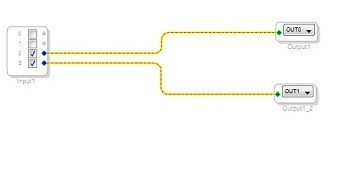
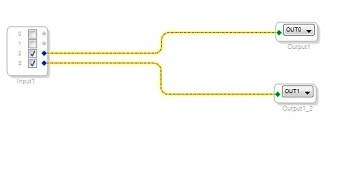
Mr.K,
The noise that you are hearing could be coming from the grounding in your computer through the USBi and does not likely reflect the performance of the ADAU1772. To verify, try powering the board from a 1.5V AAA battery and the noise should disappear.
Follow these steps,
1. Use the USBi to download your project to the board as normal.
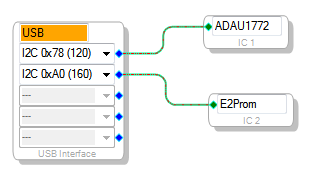
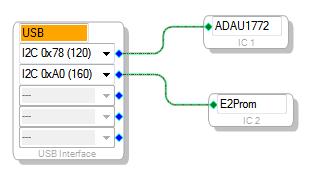
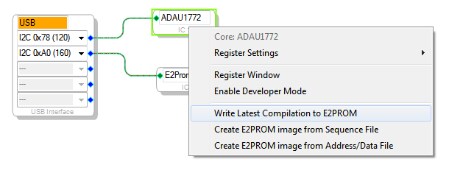
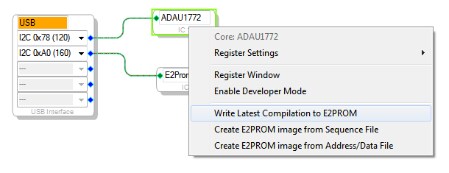
2. In the "Hardware Configuration Tab" in SigmaStudio, place an "E2Prom" cell in the window and connect it to the USBi cell.
3. Click the "Link Compile Download" button.
4. Right click the ADAU1772 cell and click the "write latest compilation to E2Prom". This will load the current project file onto the E2Prom.
5. Now, Put the evaluation board in "SELFBOOT" mode by putting switch S2 in the on position.
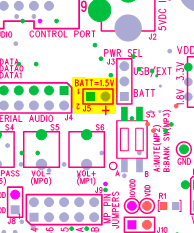
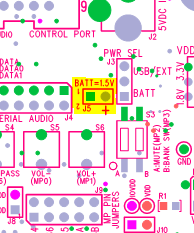
6. Unplug the USBi and power the board from a AAA battery by placing it across the pins on jumper J5.
Let me know if this helps. I have tried this myself with good results.


Please log in to reply.